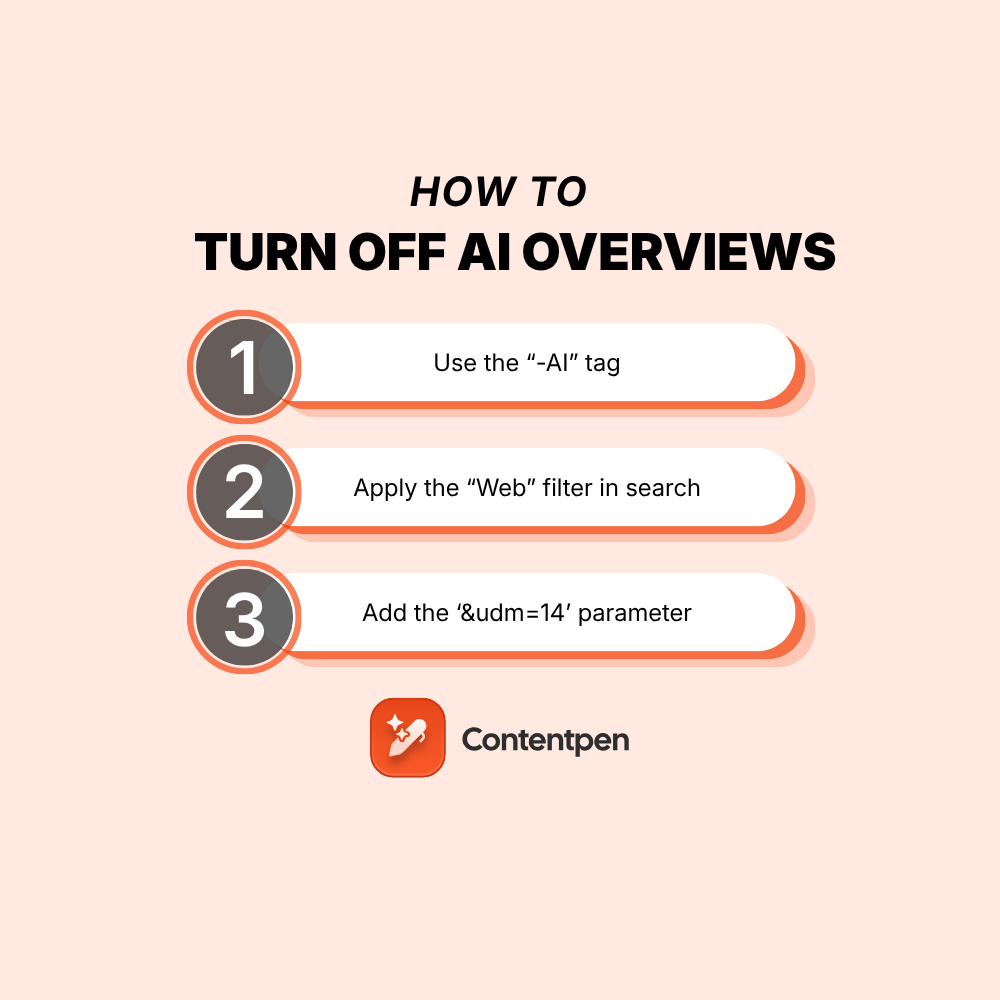
By default, there is no switch to turn off Google AI Overviews. However, there are certain ways in which you can bypass or “trick” Google’s AI features into not appearing on your screen.
Closing AI summaries is a choice that some people make to enjoy surfing the web without distractions. That said, as a business, we recommend keeping them on to ensure better AEO efforts.
In this post, we will learn how to turn off AI Overviews in Google search using 3 different methods. We will also cover a way to turn AI Overviews off on mobile.
So, let’s get started.
1. Use the ‘-AI’ tag while searching
The first method of removing AI Overviews from your search is to use the NOT (-) operator while typing in your query. This method was also mentioned by one of the members in the Google community.
Let’s say we want to search “how to cook rice” for organic results. We’ll add an “-AI” at the end of the query to avoid getting any AI Overviews in our response.
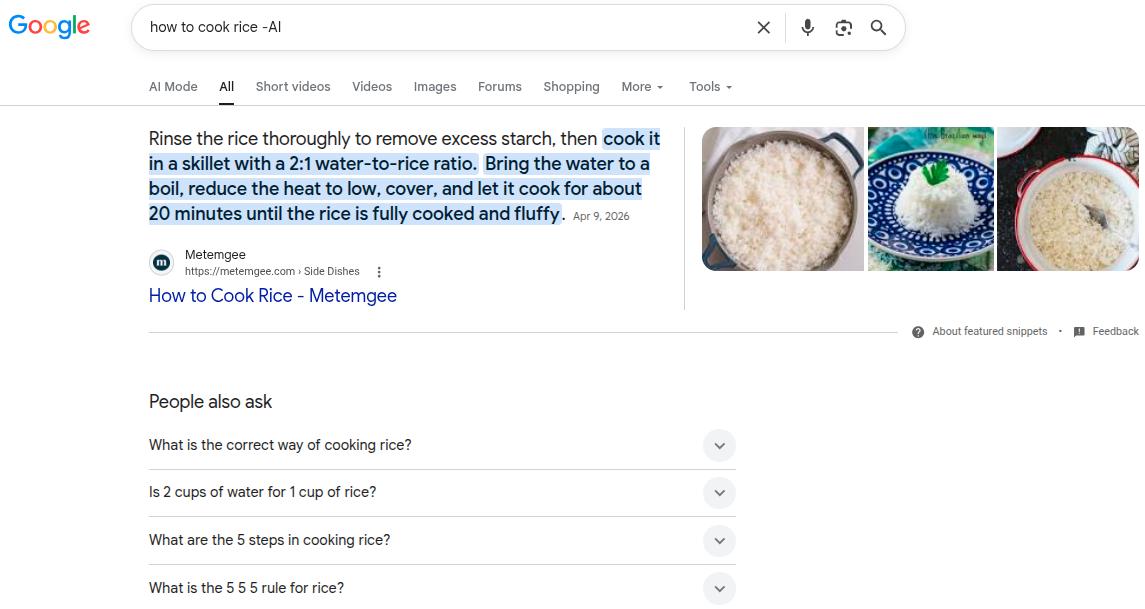
Instantly, we can see that our trick has worked and there are no AI Overviews present on our screen. Instead, we’ve got an article in the featured snippet, which Google thought covers the searcher’s intent the best.
2. Switch to Web results
Have you ever noticed search filters that appear right underneath your search bar? One of these filters is the “Web” filter that helps you remove the AI Overview panel completely.
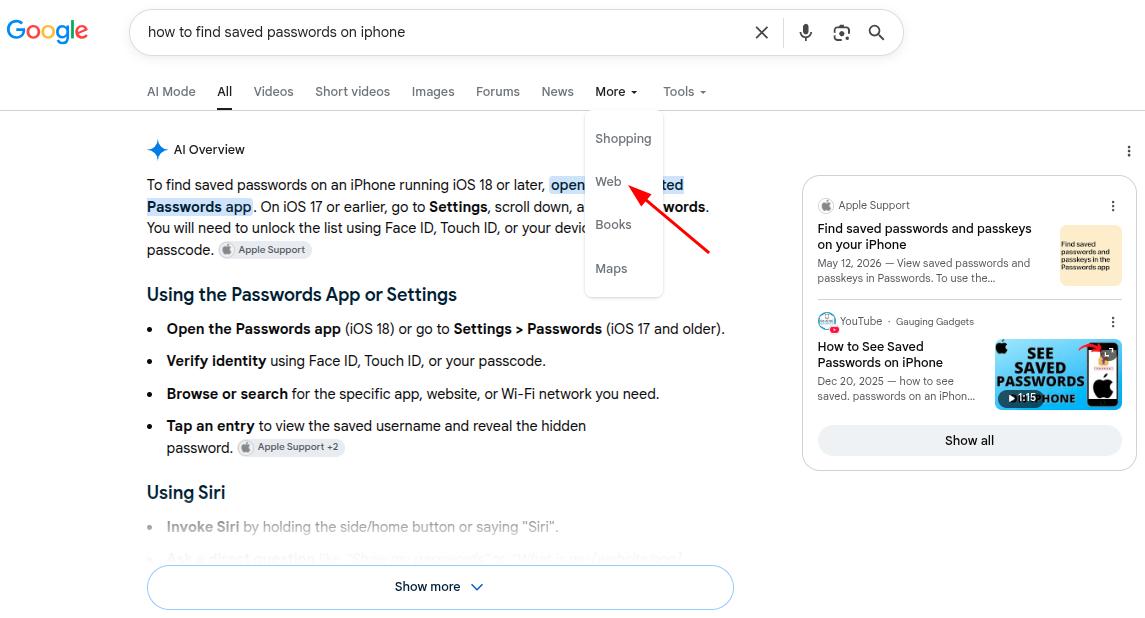
Once you click on this filter, you’ll see only the organic listings for the typed query and no AI summaries at the top.
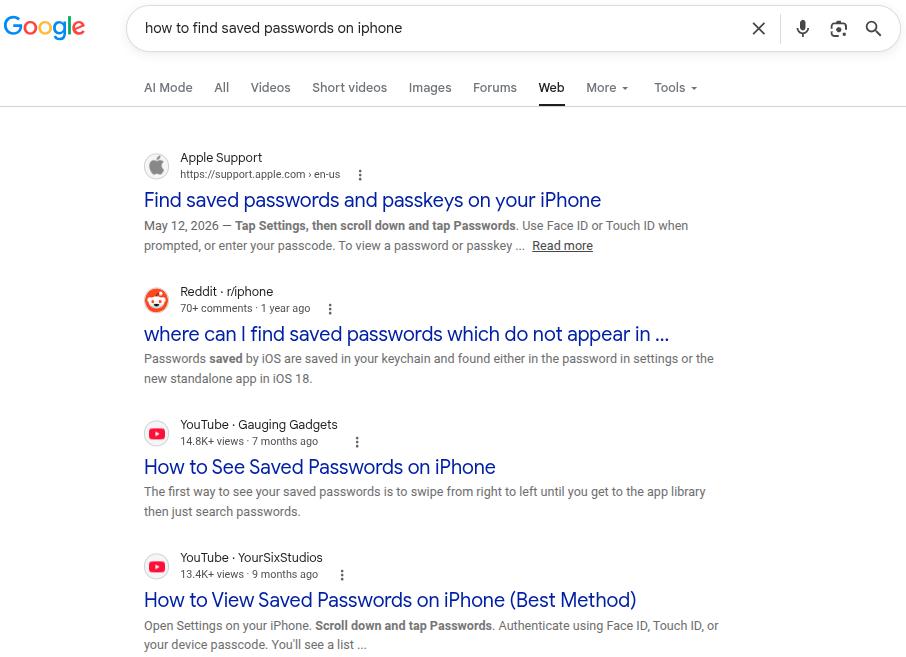
Unfortunately, you cannot set the “Web” filter by default, which means that you’ll have to manually set it every time you search.
Related read: Defining AI search optimization.
Also, when using this filter, YouTube previews and featured snippets won’t appear on your screen, as you’ve specifically requested Google to show only textual web links.
3. Add &udm=14 to URLs
‘&udm=14’ is a Google search parameter that forces the search engine to show results only with its “Web” filter mode. It is kind of like method 2, but a fancier way to turn off AI Overviews.
There are multiple ways to go about this:
i) Append ‘&udm=14’ at the end of each search URL manually
This one is pretty much straightforward but tedious. Every time you search, you go to the end of your generated URL and add &udm=14 at the end without a space. Tiresome, but works.
ii) Use the udm14.com website for search
The second way is to use the udm14.com website to search for something. It basically adds the ‘&udm=14’ search parameter to all your search URLs to turn off AI Overviews.
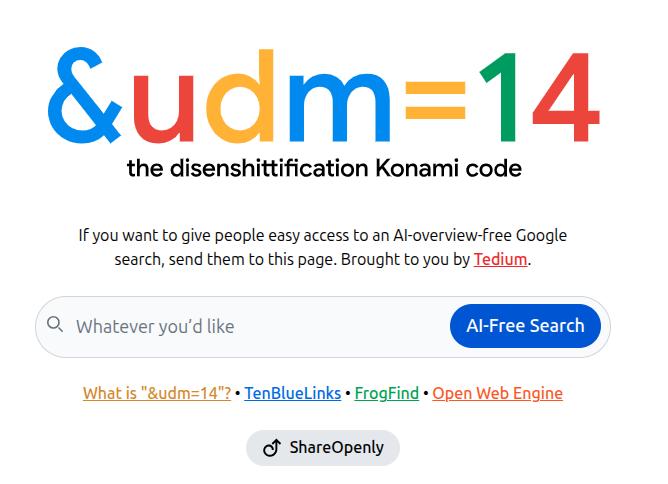
Proxy sites like this can read your search queries, so consider your comfort level before proceeding.
iii) Permanently add ‘&udm=14’ to your Google settings
Another way to turn off AI Overviews is to use your Google Chrome settings and add the ‘&udm=14’ parameter permanently to your searches. This way, you won’t have to go to proxy sites like udm14.com or compromise on your data privacy.
Go to chrome://settings/searchEngines on your Chrome browser.
Next to the ‘Site Search’ section, click the ‘Add’ button and enter the following details:
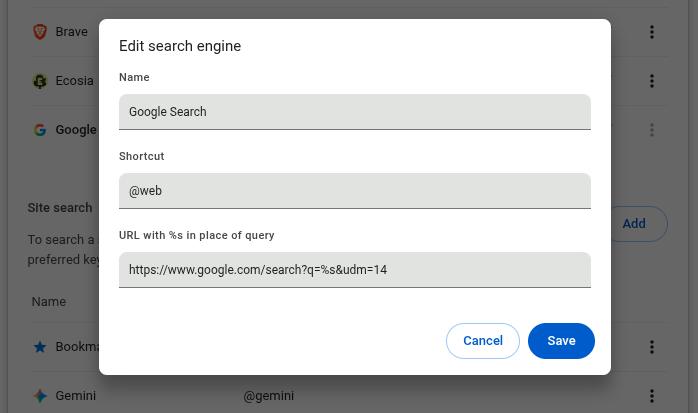
Name: Google Search
Shortcut: @web
URL: https://www.google.com/search?q=%s&udm=14
After you’re done adding the site search shortcut, make it default.
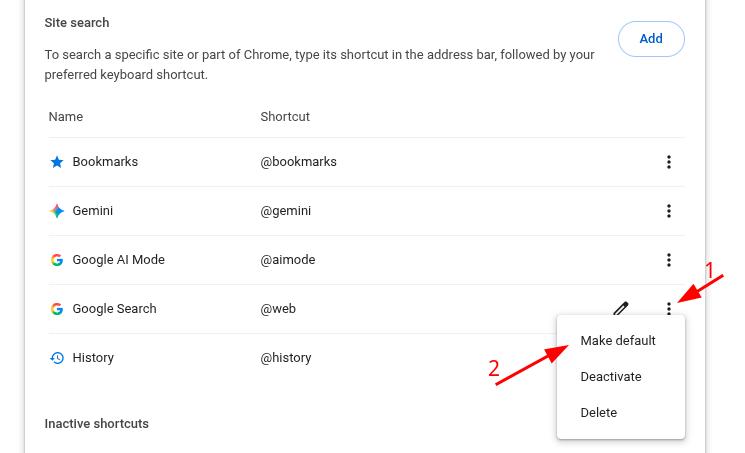
Now, Google AI Overviews will be turned off by default the next time you search something up online. But, just like the “Web” filter, you will only see textual search results and no YouTube embeds or featured snippets.
How to turn off AI Overviews on mobile?
To turn off AI Overviews on Android or iPhone, follow the given steps:
Since mobile browsers don’t generally allow the addition of custom search engines as we did previously, we’ll use OpenSearch for this method.
OpenSearch is basically a simple XML file that instructs your mobile browser to add the ‘&udm=14’ URL parameter to all your Google searches.
For Chrome on Android:
- Visit TenBlueLinks.org.
- Open a new tab on your browser and search for anything on Google (important).
- Tap on the three-dot menu in the top right corner.
- Choose “Settings”, then “Search engine”.
- Select “Google Web” in the “Recently visited” section.
After this step is done, you’ll officially add the “Web” filter to all your searches on mobile, turning off Google AI Overviews.
Chrome will show “tenbluelinks.org” as the source where it got the instructions, but all your search queries will be sent directly to Google, not this website. So, your browsing data will be safe while you turn off AI Overviews with this method.
Repeat the same procedure for iPhone to turn off Google AI on Chrome browser.
However, keep in mind that this procedure won’t work on the Safari browser. For that, you’ll have to install a separate extension called CSE from the App Store and set the ‘&udm=14’ parameter accordingly in its settings.
You can also use the “Web” filter on iPhone while searching (as we did in method 2) to turn off AI Overviews.
Why turning off Google AI Overviews is not recommended for businesses
As a business, you need to know how your product or service is being mentioned in AI summaries above the organic results.
In 2026, 68% of all Google searches end without a click (called zero-click searches). This means if you are not in AI Overviews, you risk not being seen at all.
Therefore, if you keep your AI Overviews on as a business, you’ll know the status of your business citation in AI answers. Only then would you be able to make the proper amends to your content through GEO or AEO (answer engine optimization) to boost your AI visibility.
That said, performing GEO or AEO work manually is a lot of hassle. You’ll have to ensure the answer-first formatting in your content, take care of statistical accuracy, not to mention strengthening semantic and authority signals, all by yourself.
This is where Contentpen supports your journey. The SEO AEO tool provides SEO- and GEO-optimized content by default that not only helps you rank on SERPs, but also helps you appear more frequently in AI summaries.

Get your content cited by AI, not just ranked on Google!
See your real-time GEO score as you write to make every piece citation-ready.
Try GEO Scoring →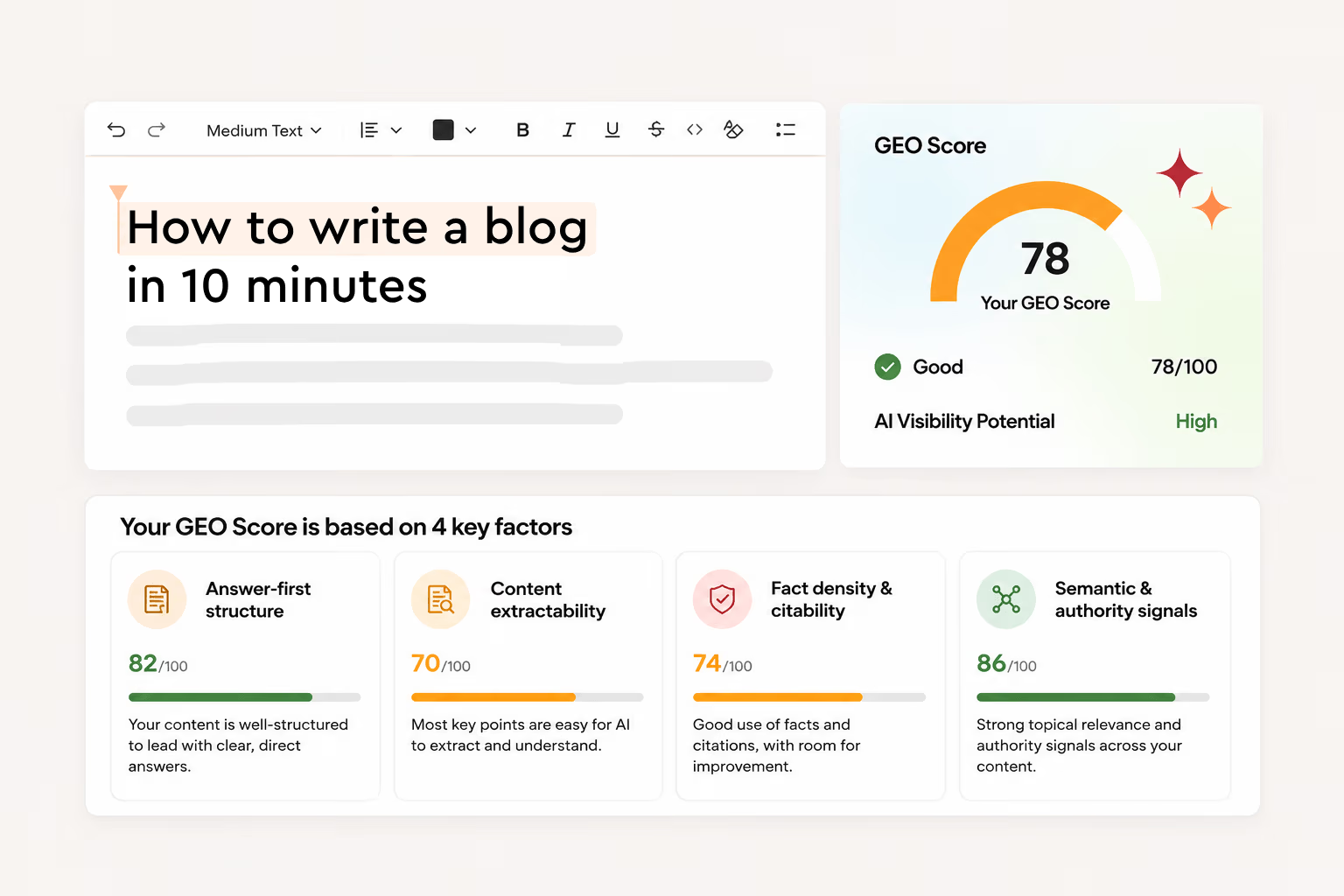
Once you’ve published some content, you can see your progress in AI citations and learn about your brand sentiment using the AI visibility tool, without switching tabs.
Summing it up
Learning how to turn off AI Overviews can be important for a lot of users to surf the Internet freely without getting burdened by AI summaries they never asked for.
In this post, we saw 3 ways to turn off Google AI Overviews: 1) using the ‘-AI’ tag while searching, the “Web” filter, or adding the ‘&udm=14’ search parameter to your URLs.
We also learned the technique to bypass AI Overviews on mobile devices. However, the method for iPhones can be a bit more complicated than Androids.
Finally, we learned why not to turn off AI Overviews as a business and saw how you can use tools like Contentpen to help you improve your AI visibility.
Frequently asked questions
Yes. You can install extensions, such as Bye Bye Google AI, Hide Google AI Overviews, or the Disable AI Overview extension to add the ‘&udm=14’ search parameter automatically to your search URLs.
Yes. You can use the Brave browser to remove AI features entirely from your searches. You can also turn off AI Overviews on Firefox by adding the ‘&udm=14’ search parameter permanently to your browser settings or by using extensions like Hide Google AI Overviews.
For Gmail, click on the settings gear in the top-right corner and look for the ‘Google Workspace smart features’ section under the ‘General’ tab. Click on ‘Manage Workspace smart features’ and turn off all the toggles. This should remove AI summaries inside Gmail.
Businesses should keep AI Overviews so that they can learn how they’re cited inside AI answer engines (if at all), be visible to users, and improve conversions. Your personal preference might be against AI Overviews, but your brand needs AI citations now more than ever.