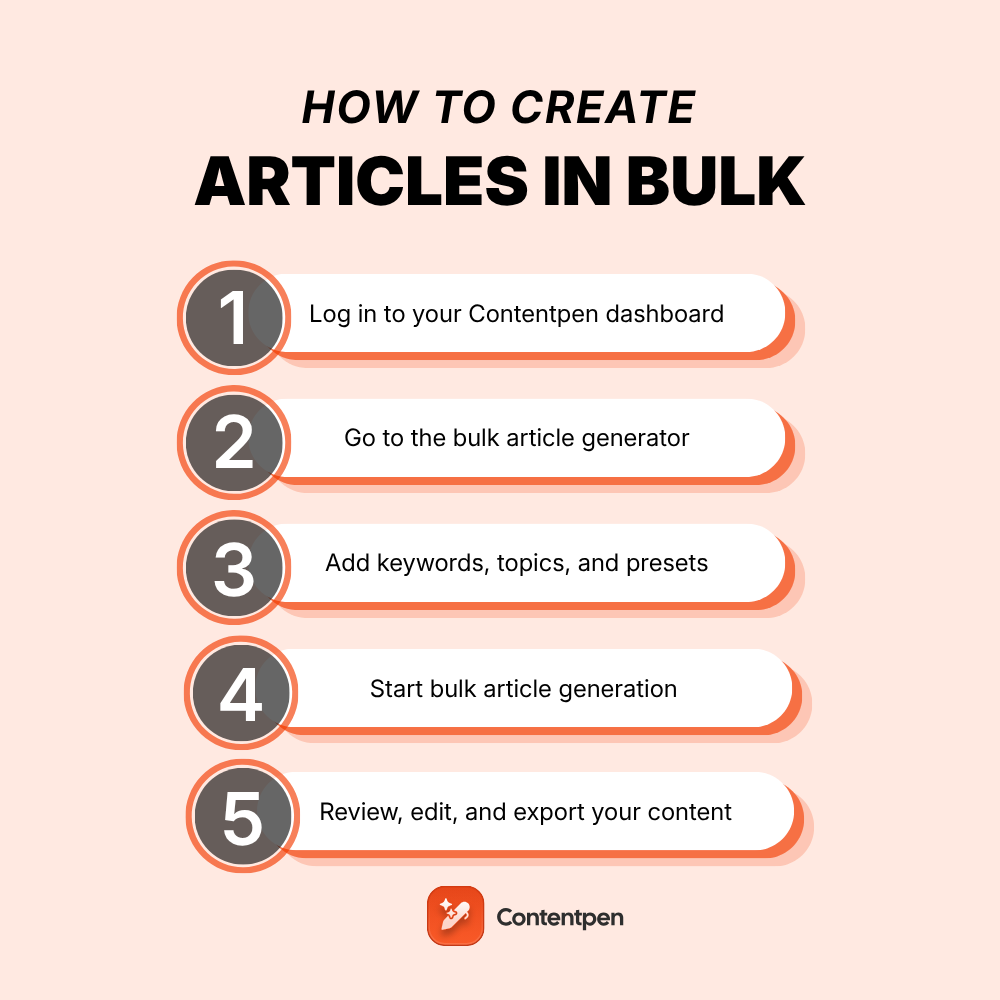
Writing articles one by one can slow you down, especially if you’re managing multiple content projects, clients, or websites.
That’s where Contentpen’s bulk article generation feature comes in. It allows you to create dozens of articles using presets and keywords in just a few clicks, saving you hours of manual work.
Whether you’re building a niche blog network or preparing content for the entire month, our AI writing tool simplifies the entire content workflow.
In this guide, we’ll walk you through each step of creating articles in bulk using Contentpen and share tips to make the most out of this feature.
Step 01: Log in to your Contentpen dashboard
Start by logging in to your Contentpen account. If you don’t have one, you can sign up in seconds. Once inside, head to the main ‘Planner’ dashboard.
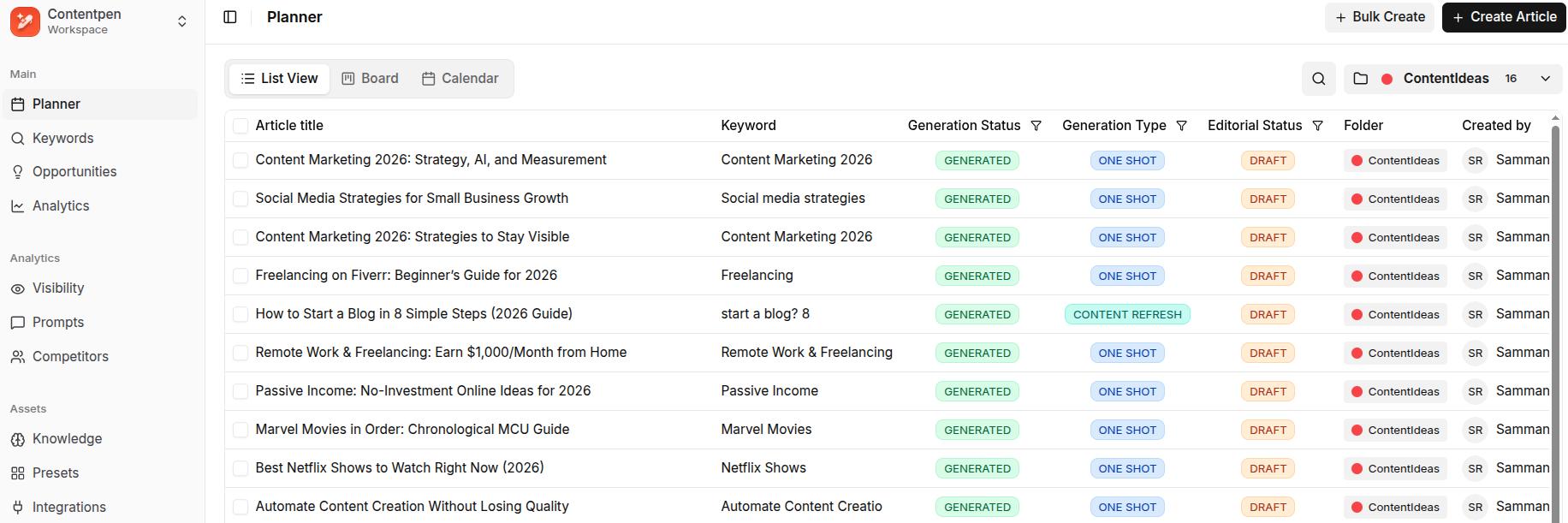
Step 02: Go to the bulk article generator
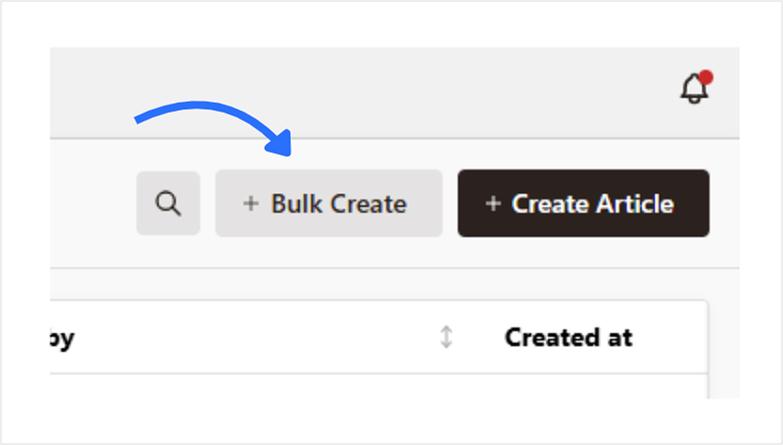
On the dashboard, look for the option labeled “Bulk Create.” This feature is designed specifically for creating multiple articles in one go.
Step 03: Add keywords, topics, and presets
To create articles in bulk:
- Add a primary keyword
- Enter your topic
- Choose a preset if you’ve set one (or just stick with the default template)
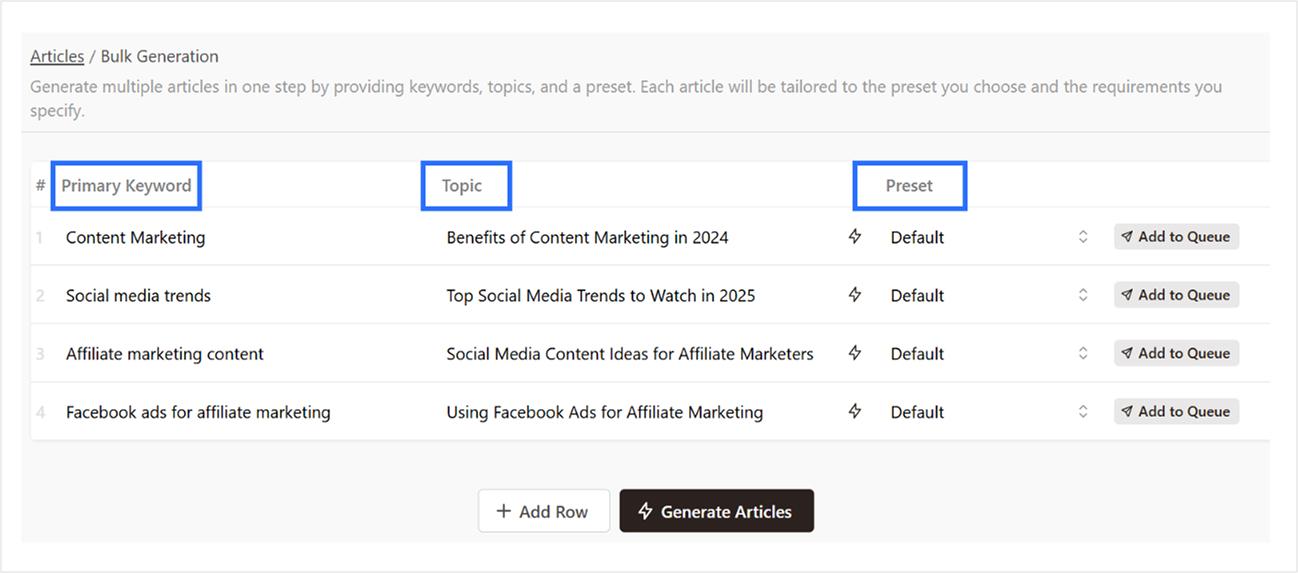
To add a row, just click on “Add Row”.
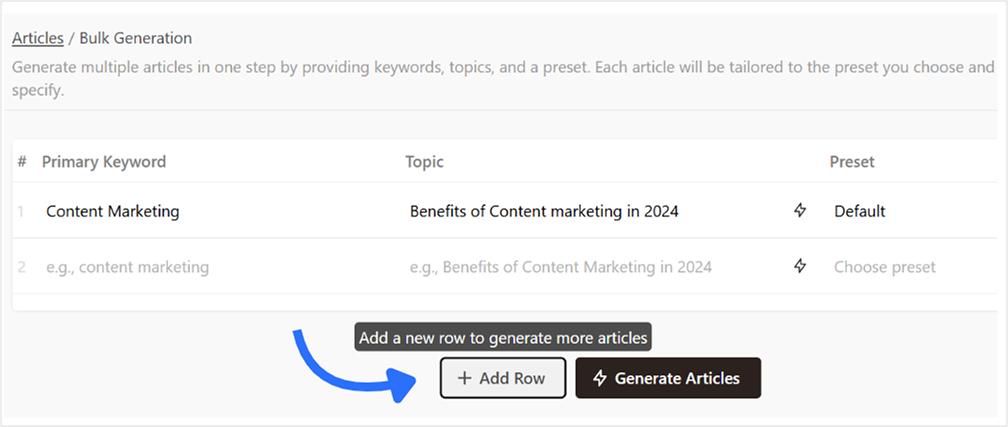
💡 Tip: Want to generate a topic based on a keyword? Just hit the button next to the topic field, and it will auto-suggest one for you.
Also read: How to write an article using Contentpen?
Step 04: Start bulk article generation
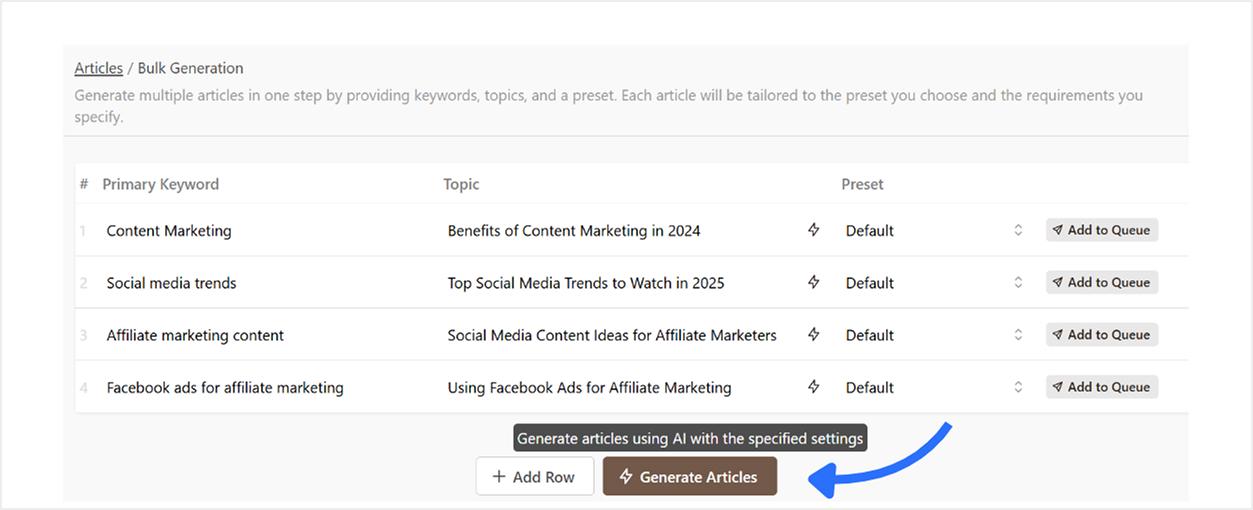
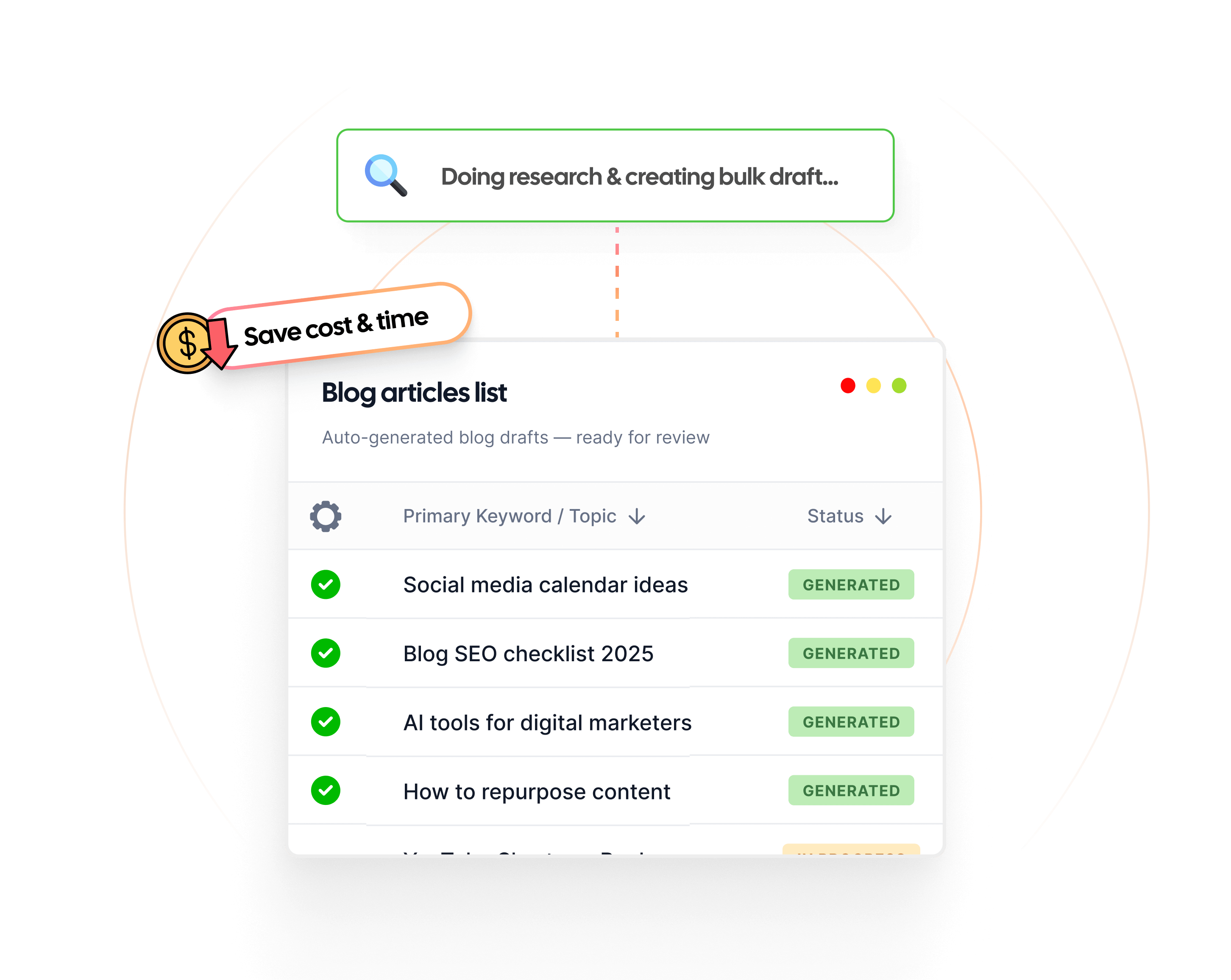
Once your rows are ready, click the “Generate Articles” button. Contentpen will begin generating content based on the inputs you’ve provided. You’ll see real-time status updates on your content planner dashboard.
Step 05: Review, edit, and export your content
Head back to your dashboard and wait for the generation process to complete.
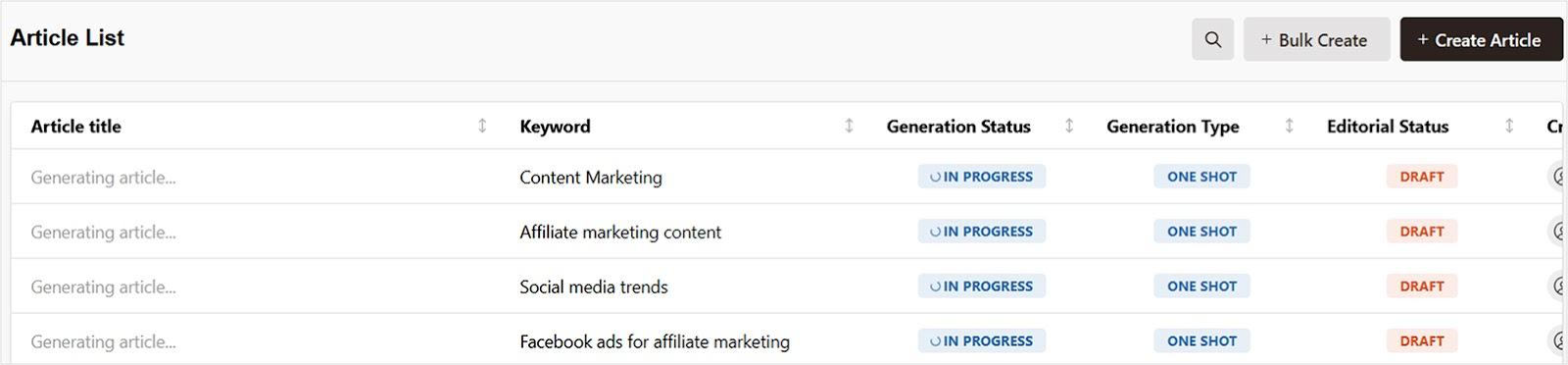
Once all articles are generated, you can:
- Preview each article inside Contentpen’s editor to make quick edits or refresh an existing article for better SERP rankings and AI visibility.
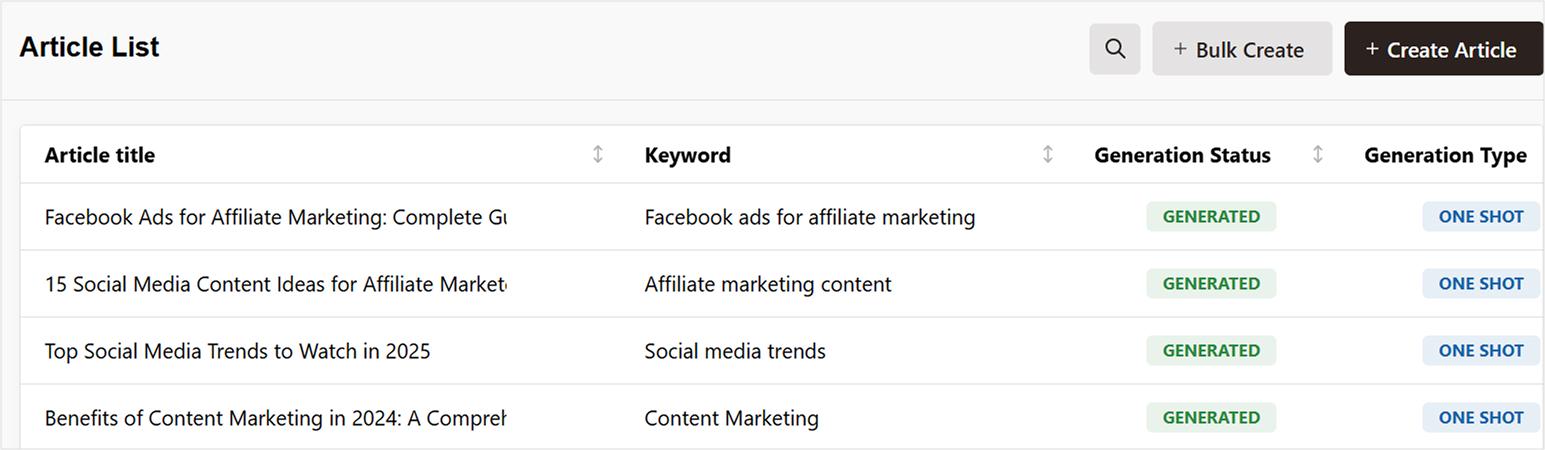
After reviewing your articles, you can:
- Share the article link for a peer consultation.
- Collaborate with team members by assigning the content for editing or reviewing.
- Download as .html, .md, or .docx (Google Docs format).
- Publish directly to WordPress, Wix, Webflow, Ghost, or Shopify (if connected).
Also read: How to connect your WordPress with Contentpen?
Final thoughts
If you’re tired of creating content one piece at a time, use Contentpen’s bulk article generator to go from a list of keywords to a full content calendar in minutes.
The tool is perfect for content marketers, bloggers, and agencies, giving them more time to focus on strategy, distribution, and growth.

Create rank worthy content at scale

Faster
Consistent
SEO-ready
Efficient
Frequently asked questions
It depends on your Contentpen plan. With the starter plan, you can generate up to 10 articles at a time. The premium plan allows 30 bulk articles, while the agency plan can generate up to 100 articles at once.
Yes, presets allow you to apply the same formatting, tone, structure, and style to all articles in a single bulk content creation session.
Yes, our AI blog writer generates unique content for each article based on the keyword and topic you enter. No duplication across content unless you input repetitive data or parameters.
Yes, you can use the same keyword for different topics if you’re targeting variations of the same niche.
Yes, if your WordPress or any other CMS site is connected to Contentpen, you can publish articles in bulk directly from your dashboard.