JobPosting schema is a type of structured data that tells Google about the job title, pay, location, employer, and closing date in a format it can read without guessing.
Get it right, and your job opening becomes eligible for Google’s job search, the listings panel that shows up when someone searches for roles with different keywords online.
The best part is that adding JobPosting schema is free, works for everyone, and you don’t need a Google account to create it.
This guide walks you through what Google needs for a job posting, a full schema example you can copy, the remote-job rules most people get wrong, and what to do when a role is filled.
Key takeaways
- JobPosting schema allows you to appear in Google’s job search experience.
- Google requires five properties: title, description, datePosted, hiringOrganization, and jobLocation (fully remote jobs use different location fields).
- Posting jobs on Google is free. You either add the markup yourself or publish through a job board or applicant tracking system that already does it for you.
- Mark a job as remote only when it’s 100% remote. Hybrid roles get a regular office location instead.
What is JobPosting schema?
JobPosting schema is a small block of code that describes a job opening the same way every time. It tells you what the role is called, who’s hiring, where the work happens, what it pays, and when applications close.
Schema.org defines JobPosting markup simply as “a listing that describes a job opening in a certain organization.” It’s one of the many types of schema markup, and one of the few ones that still unlocks a dedicated Google feature.
What Google does with it
When someone searches for work on Google, they can get a job search experience, which is basically a panel of listings with filters for things like location, job type, and date posted.
Take a look at this example below for a Google search with the keyword ‘barista jobs near me.’
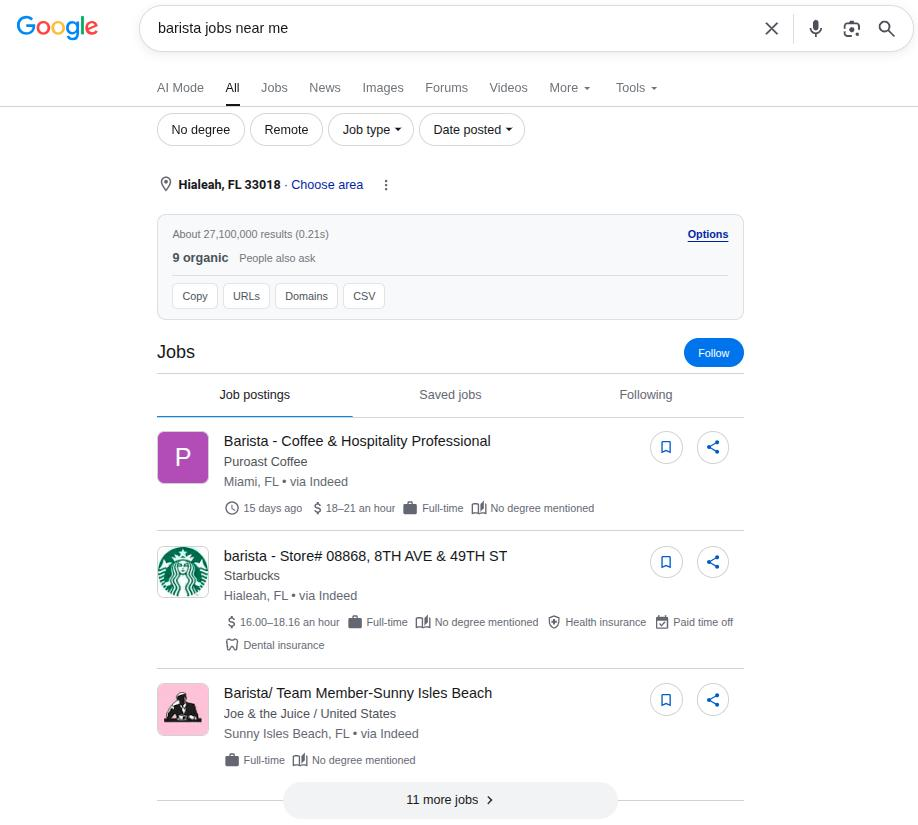
As a searcher, you can easily land a role with this search feature by looking at the desired position in your locality.
For employers, the appeal is reach.
Google’s own documentation says the feature can bring “more, motivated applicants,” because people can filter until they land on exactly the role they want, and then click through to your site.
Can you post a job on Google for free?
Yes, and that surprises a lot of people. There’s no fee and no form to fill in, because Google doesn’t take job posts directly. You get listed in one of two ways:
- Add the markup yourself: Put JobPosting markup on each job page on your own site, and Google picks it up when it crawls.
- Post through a third-party job site: Many job boards and applicant tracking systems add the markup for you, so jobs you publish there can show up directly in Google’s job search experience.
If you run your own careers page, the first route keeps candidates on your site instead of a job board’s. That’s the route the rest of this guide talks about.
Where Google’s job search is available
It’s not available everywhere yet.
Google lists the feature as available across all of North America, Latin America, and Sub-Saharan Africa, plus selected countries in Asia, Europe, the Middle East, and North Africa, including India, Japan, Germany, France, and the UK.
If you hire in the US or Canada, you’re covered. If you hire elsewhere, check Google’s region list first before you build your career page.
Is this type of markup the same as LinkedIn’s JobPosting schema?
No, and the names make that confusing. LinkedIn’s JobPosting API has its own schema, but it’s a data format that applicant tracking systems and job distributors use to push jobs into LinkedIn. It isn’t page markup, and Google doesn’t read it.
JobPosting markup lives on your page and describes the job to Google. The fields overlap (title, description, location), but they’re separate systems.
Before the code: Writing a job posting Google will actually show
Here’s something most guides skip. Google checks the job posting itself, not just the markup.
A thin, vague, or spammy job post won’t show up no matter how clean your markup code is.
So, the better idea is to start with the page content itself and improve it for more visibility.
How to structure a job posting
A good job posting answers a candidate’s questions in the order they ask them. That same structure also fills Google’s description field, which needs to include responsibilities, qualifications, skills, working hours, education, and experience.
Here’s a simple job posting template you can follow:
| Section on the page | What to write | Where it shows up in the markup |
|---|---|---|
| Job title | The role only, like “Bike Mechanic” | title |
| Short intro | Who you are and why the role exists | description |
| What you’ll do | Four to six real responsibilities | description |
| What you’ll need | Skills, experience, and education | description, plus experienceRequirements and educationRequirements |
| Pay and benefits | The actual pay or range, plus perks | baseSalary |
| Schedule and location | Hours, days, and where the work happens | description, jobLocation, employmentType |
| How to apply | A button, form, or email address | directApply |
Notice the title rule in the first row. Google wants the job title and nothing else, so avoid adding any company names, job codes, salaries, or dates here.
Red flags Google won’t show in job search
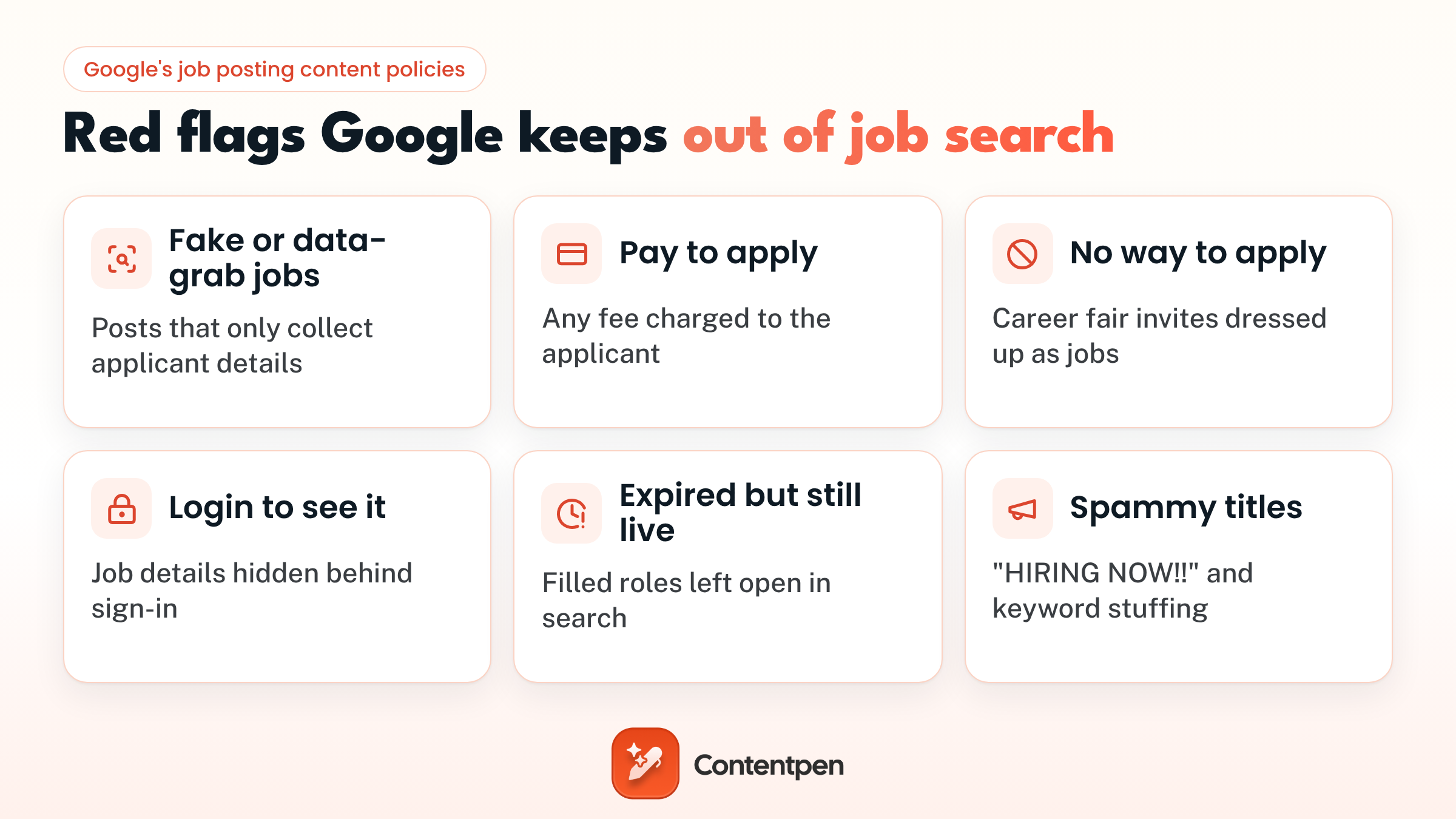
If you’ve ever wondered what the red flags in job postings are, Google has written its own list. Its job posting content policies block exactly the kinds of posts that make candidates nervous:
- Fake jobs and data grabs: Postings for roles that don’t exist, or that are mainly created with the purpose of collecting applicant details. Think of something like “Remote Data Entry Clerk, $45 an hour, no experience needed” ad that asks for your Social Security number and bank details before any interview.
- Pay to apply: Any posting that charges the applicant a fee to apply.
- No way to apply: Career fair invites dressed up as jobs, or posts with no application path.
- Expired listings: Filled roles left up as if they were still open.
- Spammy writing: Keyword-stuffed titles, all caps, excessive special characters, and company ads disguised as jobs.
Hosting a career fair or hiring event instead? That’s not a job posting in Google’s eyes. Mark it up with Event schema instead, so it can still show up properly.
What’s legally required in a US job posting?
There’s no single federal checklist, but two sets of rules cover most employers. This isn’t legal advice, so check with an employment lawyer for your state and city:
- No discriminatory preferences: The EEOC says it’s illegal to publish a job ad that shows a preference based on race, color, religion, sex, national origin, age (40 or older), disability, or genetic information. Phrases like “young, energetic team” can cross that line.
- Pay ranges in many states: California, Colorado, Illinois, New York, Washington, and several other states, plus Washington, D.C., now require a pay range in job postings. Virginia and Maine joined in 2026, and 17 states plus D.C. have some form of pay transparency law on the books.
Pay ranges and markup work well together. If the law has you showing a range on the page, put the same range in the baseSalary property in the markup as well.
JobPosting properties: What Google requires and what’s worth adding
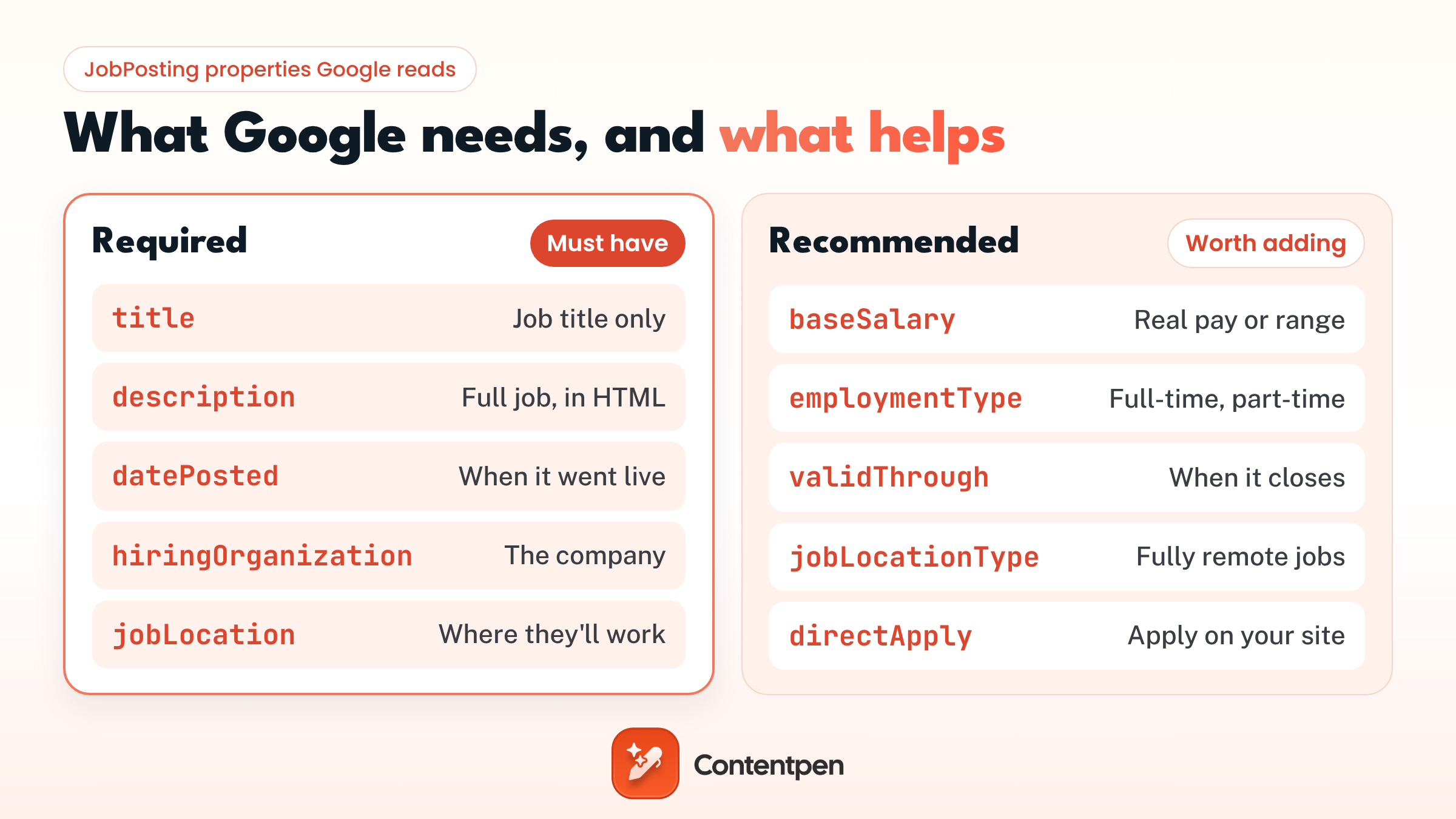
Google reads a short list of JobPosting properties. Five are required, a handful more are recommended, and a few newer education and experience fields are still in beta.
The five required properties
These five properties are critical for your job posting to show on Google:
| Property | What goes in it | Watch out for |
|---|---|---|
| title | The job’s title, like “Shipping and Receiving Warehouse Associate” | Adding salaries here, dates, or “HIRING NOW!!” phrases. |
| description | The full job description, written in HTML | Use paragraph breaks at minimum. It can’t just repeat the title. Explain what the person will be doing. |
| datePosted | The date you first posted the job, like 2026-11-23 | Use ISO 8601 format, and keep the original date when you edit the post. |
| hiringOrganization | The company doing the hiring | Use the company name, not a branch. Hiring anonymously? Use “confidential”. |
| jobLocation | The address where the person reports to work | addressCountry is mandatory. List several locations in an array if needed. |
Writing the description property is where most people get confused.
Google only recognizes ‘<p>’, ‘<ul>’, and ‘<li>’ tags for formatting text, so bold text and headings inside it won’t change how the listing looks. They won’t hurt it either, though.
Recommended properties that make your listing better
These properties aren’t required for the job post, but each one answers a question candidates filter by, so it’s advised to add them:
| Property | What it does | Example |
|---|---|---|
| baseSalary | The actual pay from the employer, as one value or a range | $24 to $29 an hour, with unitText “HOUR” |
| employmentType | The kind of job, using Google’s fixed values | FULL_TIME, PART_TIME, CONTRACTOR, TEMPORARY, INTERN, VOLUNTEER, PER_DIEM, OTHER |
| validThrough | When the posting expires. Required if the job has an end date. | 2027-01-15T23:59 |
| jobLocationType | Marks a job as fully remote | TELECOMMUTE |
| applicantLocationRequirements | Where remote hires can live | A country or state, like “USA” |
| identifier | Your internal job ID | SC-2611 |
| directApply | Says people can apply right on your page | true |
Two of these deserve a closer look. For baseSalary, unitText only accepts HOUR, DAY, WEEK, MONTH, or YEAR, in capitals. And directApply should only say true if someone can finish applying on your page without clicking through extra steps or logging in more than once.
Education and experience details (beta)
Google also reads three newer properties, though it says you may not see any effect in search yet:
- educationRequirements: Uses fixed values like “high school,” “associate degree,” “bachelor degree,” “professional certificate,” or “postgraduate degree.”
- experienceRequirements: The minimum months of experience, through the monthsOfExperience property.
- experienceInPlaceOfEducation: Set it to true if experience can stand in for a degree, and include both properties above.
The experience minimum can get fiddly. If a role asks for “one year as a line cook or two years as a prep cook,” the minimum is 12 months, because either path qualifies. If it asks for both, the minimum is 24 months, the longer of the two.
Keep describing these requirements in the description too, since that’s what candidates read.
JobPosting schema example: A bike mechanic in Denver
Here’s a complete example for a made-up shop, Switchback Cycles, hiring a full-time mechanic. It includes every required property plus the recommended ones most employers can fill in:
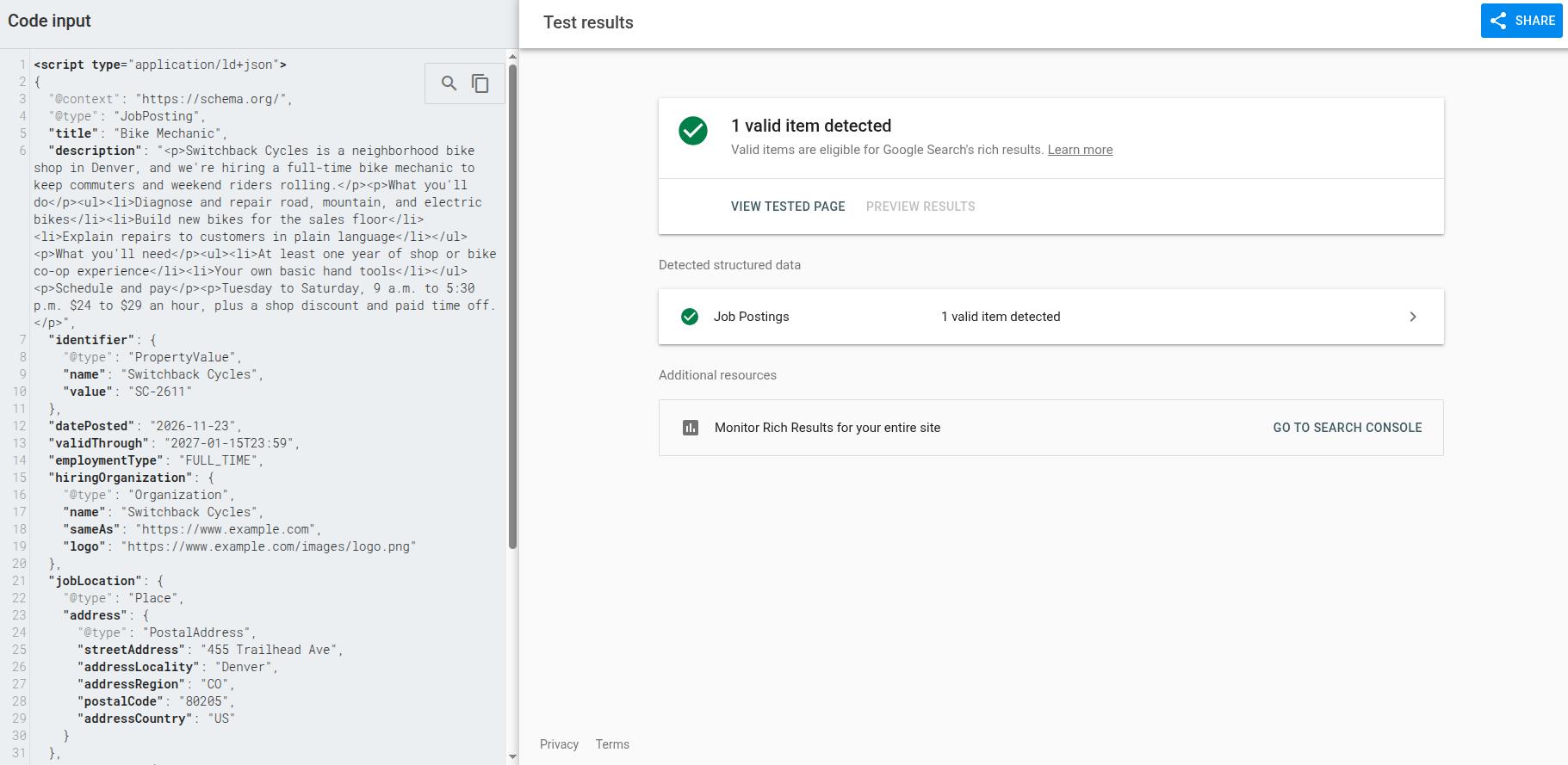
<script type="application/ld+json">
{
  "@context": "https://schema.org/",
  "@type": "JobPosting",
  "title": "Bike Mechanic",
  "description": "<p>Switchback Cycles is a neighborhood bike shop in Denver, and we're hiring a full-time bike mechanic to keep commuters and weekend riders rolling.</p><p>What you'll do</p><ul><li>Diagnose and repair road, mountain, and electric bikes</li><li>Build new bikes for the sales floor</li><li>Explain repairs to customers in plain language</li></ul><p>What you'll need</p><ul><li>At least one year of shop or bike co-op experience</li><li>Your own basic hand tools</li></ul><p>Schedule and pay</p><p>Tuesday to Saturday, 9 a.m. to 5:30 p.m. $24 to $29 an hour, plus a shop discount and paid time off.</p>",
  "identifier": {
    "@type": "PropertyValue",
    "name": "Switchback Cycles",
    "value": "SC-2611"
  },
  "datePosted": "2026-11-23",
  "validThrough": "2027-01-15T23:59",
  "employmentType": "FULL_TIME",
  "hiringOrganization": {
    "@type": "Organization",
    "name": "Switchback Cycles",
    "sameAs": "https://www.example.com",
    "logo": "https://www.example.com/images/logo.png"
  },
  "jobLocation": {
    "@type": "Place",
    "address": {
      "@type": "PostalAddress",
      "streetAddress": "455 Trailhead Ave",
      "addressLocality": "Denver",
      "addressRegion": "CO",
      "postalCode": "80205",
      "addressCountry": "US"
    }
  },
  "baseSalary": {
    "@type": "MonetaryAmount",
    "currency": "USD",
    "value": {
      "@type": "QuantitativeValue",
      "minValue": 24.0,
      "maxValue": 29.0,
      "unitText": "HOUR"
    }
  },
  "experienceRequirements": {
    "@type": "OccupationalExperienceRequirements",
    "monthsOfExperience": 12
  },
  "directApply": true
}
</script>
Walking through the trickier parts
Most of this reads like plain English, but a few spots are worth a second look:
- The description is real HTML: Paragraphs and bullet lists sit inside the quotes, and the text matches the job page word for word.
- The pay is a range: minValue and maxValue set $24 to $29, and unitText says it’s hourly. Colorado requires pay ranges in JobPostings, so this example would need one anyway.
- validThrough has a date and time: The job stops being valid at 11:59 p.m. on January 15, 2027. Leave this out if a role has no set closing date.
- identifier carries the shop’s own job ID: Handy when the same role gets reposted or edited.
- experienceRequirements matches the description: “At least one year” on the page becomes monthsOfExperience, which is ’12’ in the code.
Every value in the code also appears on the page. That’s not a style choice. Google treats a salary in the markup that isn’t visible on the page as a policy violation.
A blank JobPosting schema template
Want a starting point instead? Copy this template, swap every capitalized placeholder for your real details, and add a pay range only if you show one on the page:
<script type="application/ld+json">
{
  "@context": "https://schema.org/",
  "@type": "JobPosting",
  "title": "JOB TITLE",
  "description": "<p>FULL JOB DESCRIPTION</p>",
  "datePosted": "YYYY-MM-DD",
  "validThrough": "YYYY-MM-DDTHH:MM",
  "employmentType": "FULL_TIME",
  "hiringOrganization": {
    "@type": "Organization",
    "name": "COMPANY NAME",
    "sameAs": "https://www.your-site.com",
    "logo": "https://www.your-site.com/logo.png"
  },
  "jobLocation": {
    "@type": "Place",
    "address": {
      "@type": "PostalAddress",
      "streetAddress": "STREET ADDRESS",
      "addressLocality": "CITY",
      "addressRegion": "STATE",
      "postalCode": "ZIP CODE",
      "addressCountry": "US"
    }
  },
  "baseSalary": {
    "@type": "MonetaryAmount",
    "currency": "USD",
    "value": {
      "@type": "QuantitativeValue",
      "minValue": "MIN PAY",
      "maxValue": "MAX PAY",
      "unitText": "YEAR"
    }
  }
}
</script>
For other markup types built the same way, browse our schema markup examples.
How to mark up remote, hybrid, and on-site jobs
This is where job markup gets confusing, so let’s take this slow and steady.
Google only lets you call a job remote when the person can work remotely 100% of the time. Everything else, including hybrid roles, is an on-site job as far as the markup is concerned.
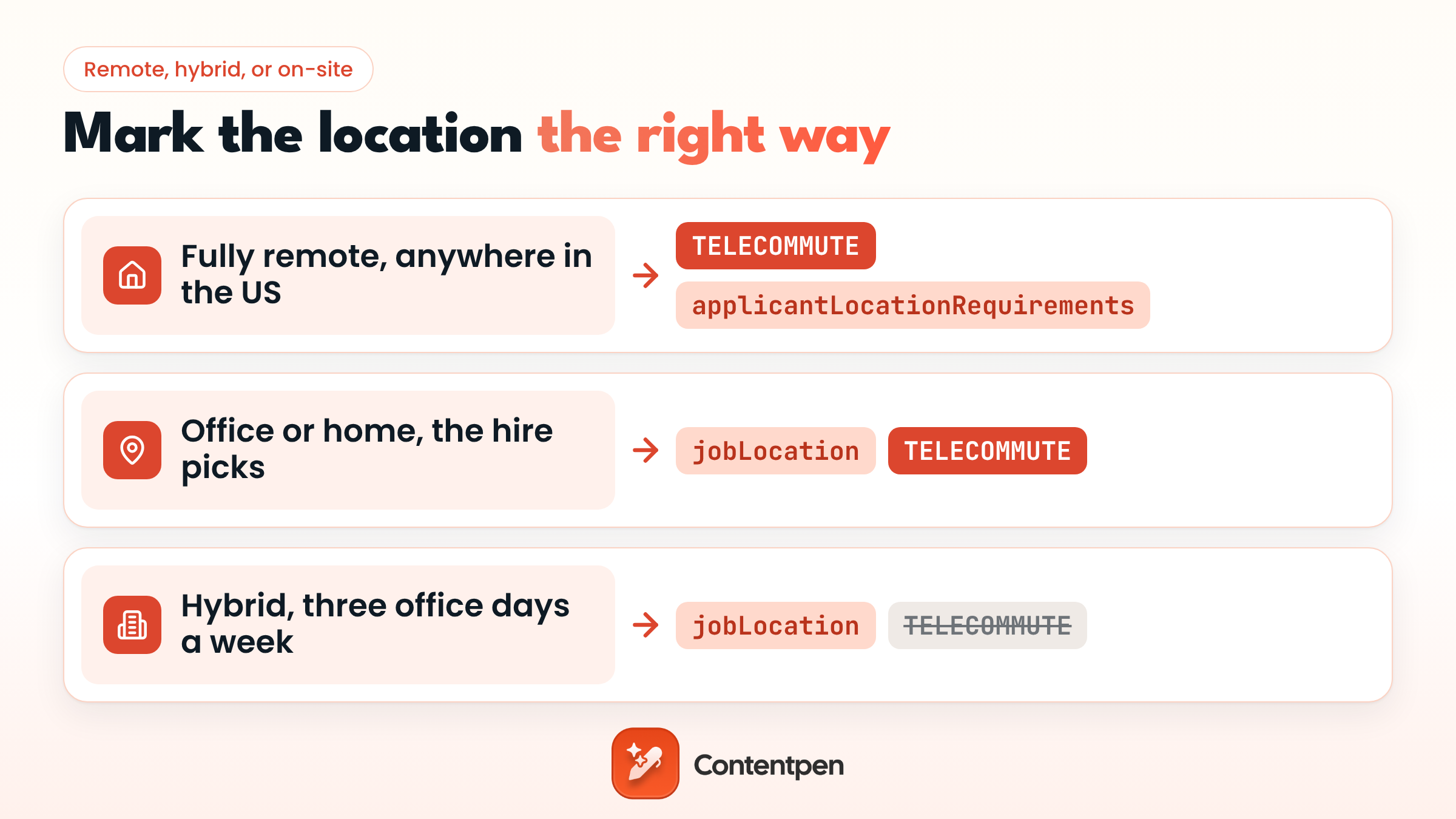
Fully remote, anywhere in one country
Say your support team works from home anywhere in the US. Use jobLocationType to mark the job as remote, and applicantLocationRequirements to say where hires can live. You can skip jobLocation entirely, since there’s no office to report to:
"jobLocationType": "TELECOMMUTE",
"applicantLocationRequirements": {
  "@type": "Country",
  "name": "USA"
}
Don’t leave out the country. Google needs at least one, and the job description should say plainly that the role is fully remote.
Remote or in the office, and the hire chooses their location
Now say the job can be done at your Austin office or from home anywhere in Texas.
In that case, you’ll need all three properties: jobLocation for the office, applicantLocationRequirements for where remote hires can live, and TELECOMMUTE to say remote is a full option:
"jobLocation": {
  "@type": "Place",
  "address": {
    "@type": "PostalAddress",
    "addressLocality": "Austin",
    "addressRegion": "TX",
    "addressCountry": "US"
  }
},
"applicantLocationRequirements": {
  "@type": "State",
  "name": "Texas, USA"
},
"jobLocationType": "TELECOMMUTE"
If you skip applicantLocationRequirements here, Google shows the remote option to anyone in the office’s country. That might be fine, or it might flood you with applicants from states you can’t hire in.
Hybrid jobs: Leave TELECOMMUTE out
A role with three office days a week isn’t remote, even if it feels that way to your team.
Google is explicit in this case: don’t use TELECOMMUTE for jobs that allow occasional work from home or treat remote work as a negotiable perk.
Mark up the office address with jobLocation, and explain the hybrid schedule in the description, where candidates will read it.
How to add JobPosting schema to your site
Once your posting is clearly written and you know which properties you need, adding the markup comes down to four steps.
1. Put it on each job’s own page
The markup belongs on the most specific page possible: one page per job, showing the full description.
Never put JobPosting markup on your careers page or a search results page that lists several roles. Google treats that as a policy violation.
If the same job lives at a few URLs on your site, point them all to one with a canonical tag. Link every job page from your careers page, too, since good internal linking helps Google find new roles quickly.
2. Use your CMS, ATS, or a plugin
You rarely need to hand-write this for every job:
- WordPress: Rank Math’s JobPosting schema type has fields for salary, expiry date, employment type, and hiring organization. Its remote job fields are part of the PRO plan.
- Applicant tracking systems and job board software: Many of these tools add the markup to every job page automatically, so check yours before building anything.
- Custom sites: Add the JSON-LD to your job page template, and fill it from the same data that fills the visible page, so the two never drift apart.
Whichever route you take, test one job before rolling it out to all of them.
3. Test it before you publish
Paste a job’s URL or code into Google’s Rich Results Test. It should detect a “Job posting” item, and its preview shows how Google reads details like the location.
Then publish, and check the live page with URL Inspection in Search Console to confirm Google can see everything without a login, a noindex tag, or a robots.txt block in the way.
What to do when a job is filled
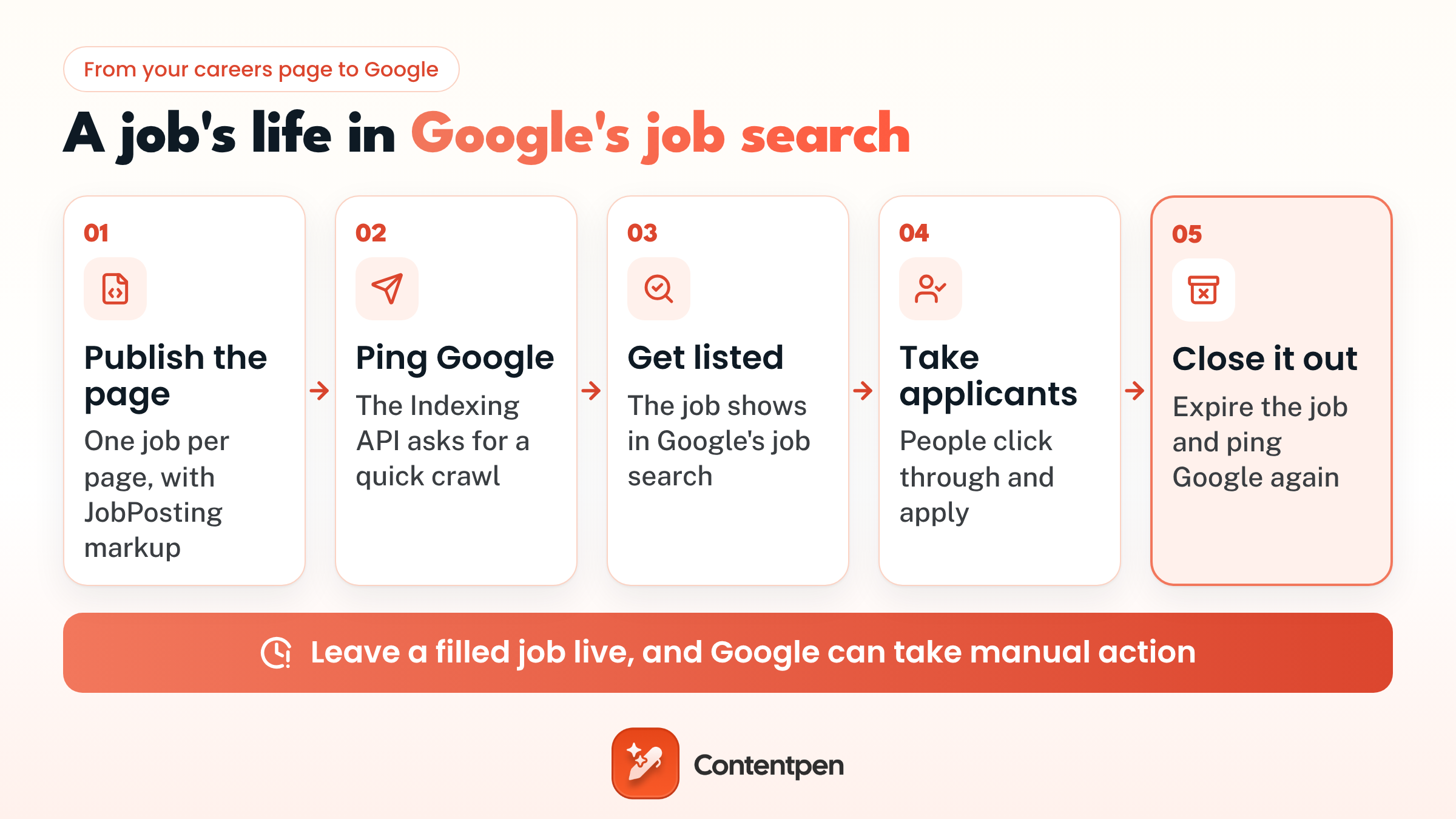
This is the step people forget, and it’s the one Google is strictest about. Expired jobs that stay live can lead to a manual action. When a role closes, do one of these:
- Set validThrough in the past: The page can stay up, but the markup now says the job is closed.
- Remove the page: Requests for it should return a 404 or 410 status code.
- Remove the markup: Take the JobPosting code off the page.
Then tell Google through the Indexing API so the job drops out of search quickly. If you use Rank Math, its “Unpublish when Expired” setting turns the post back into a draft after the expiry date, so the page returns a 404 without you lifting a finger.
Why isn’t my job showing on Google?
Valid markup makes a job eligible, but Google never guarantees it’ll show. If a job is missing, these are the usual causes, straight from Google’s troubleshooting list:
| What’s wrong | How to fix it |
|---|---|
| The markup is on a list or search page | Move it to each job’s own page. |
| The page and markup don’t match | Make every value in the code visible on the page, including pay. |
| An expired job is still live | Expire it using one of the three methods above, then ping the Indexing API. |
| There’s no way to apply | Add a button, form, or contact details for applying on the page. |
| The logo is wrong | Add hiringOrganization.logo with a width-to-height ratio between 0.75 and 2.5. |
| Google can’t place the location | Fill in as many address fields as you can, and check the location in the Rich Results Test preview. |
| Nothing’s wrong yet | Give Google a few days to crawl, or use the Indexing API to speed it up. |
After you fix a policy issue flagged in Search Console, submit the site for reconsideration so Google reviews it again.
How to track applicants who come from Google
Want to know how many applicants Google’s job search actually sends you? Google’s documentation lists three UTM tags for this. UTM tags are short labels at the end of a link that tell your analytics tool where a visitor came from:
- utm_source=google_jobs_apply
- utm_medium=organic
- utm_campaign=google_jobs_apply
In Google Analytics, filter your traffic by the source “google_jobs_apply” to see how many people reached your site from a Google job listing. If you track applications as a conversion, you’ll also see how many of them applied.
Search Console’s Performance report covers the step before that click. It shows how often your job pages appear in Google and how often people click them.
A role with lots of impressions but few clicks means that either the title didn’t stick, or the candidates were hesitant to apply due to a lack of salary, location, or other crucial details about the job.
Final thoughts
JobPosting schema is one of the most practical bits of markup you’ll ever add. It costs nothing, and it puts your openings where job seekers already search.
Start with one role. Write the posting first, add the markup, test it, and set a reminder for the day it closes. Once that one shows up in Google’s job search, rolling the same setup out to every opening is the easy part.
Want your brand found by candidates and customers alike? Contentpen is an SEO and AEO tool in one, with AI agents that plan, write, and publish for you. Try it free.

Write content that’s built to rank, not just read
Create search-optimized blogs aligned with SEO and GEO signals, so your content performs well across search and AI-driven discovery.
Try SEO Blogging FREE →
Frequently asked questions
Not if you have a handful of roles. The template above covers them. A generator or plugin saves time when you post often, but check its output against your page before publishing, especially the salary and location details.
Not directly. It doesn’t push your page higher in regular results. What it does is make your job eligible for Google’s job search experience, which is a separate place to be found.
There’s no evidence that it does on its own. Clear, complete job pages matter more. Our guide to schema markup for AI search covers what the research shows.
There’s no official answer, but December is the month recruiters most often call slow due to holidays and year-end budgets. However, things usually pick back up in January. If you post during the holidays, set a realistic validThrough so the listing doesn’t expire mid-search.
Yes, as long as it’s a real, open role with a way to apply. Use CONTRACTOR, TEMPORARY, or PER_DIEM as the employmentType. Just don’t assume gig work is remote. Google says the gig nature of a job doesn’t make it remote, so mark it up based on where the work actually happens.