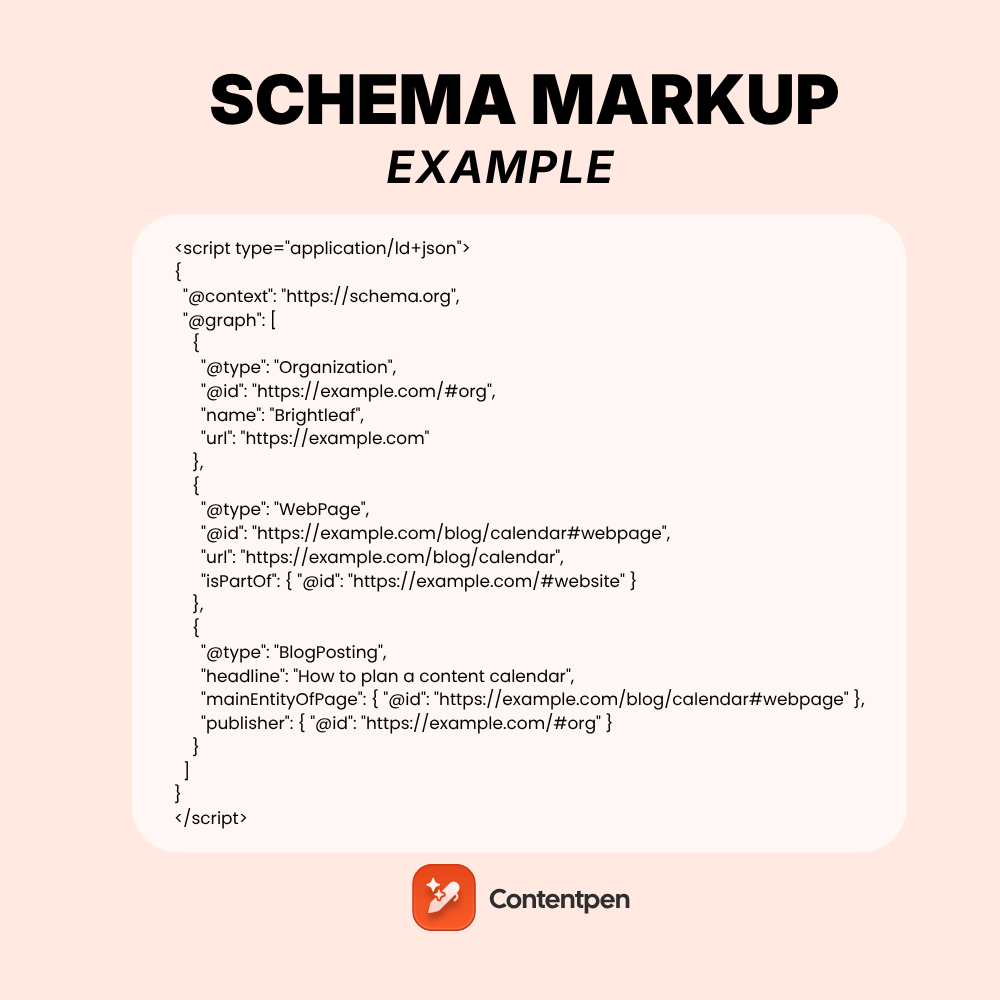
A schema markup is a short block of JSON-LD code that describes a page’s content using the schema.org vocabulary. The simplest one names your organization:
| {“@context”: “https://schema.org”, “@type”: “Organization”, “name”: “Brightleaf”, “url”: “https://example.com”}. |
Wrap it in a script tag, paste it into your page, and search engines can read it.
The trouble is that most guides show schema as screenshots. You can’t copy an image, and retyping code by hand is how errors creep in.
Worse, many examples online are outdated. Some still promise FAQ rich results that Google stopped showing in 2026.
Below you’ll find 10 copyable schema markup examples, a connected multi-type example, and the steps to test them.
Grab the one you need and adapt it.
Key takeaways
- Every example here uses JSON-LD, the format Google recommends whenever your setup allows it.
- Start with Organization, WebSite, and BreadcrumbList, then add page-level types like Article or Product.
- Always fill Google’s required properties, or valid code still won’t qualify for rich results.
- Connect multiple types on one page with @graph and @id instead of separate, disconnected blocks.
- FAQPage code is still valid, but it no longer earns a rich result in Google Search.
- Test every snippet in the Rich Results Test and the Schema Markup Validator before going live.
What does a schema markup example look like?
Every JSON-LD example follows the same pattern. Once you see it, every other snippet becomes easy to read.
| Part | What it does | Example value |
|---|---|---|
| <script type=”application/ld+json”> | Tells the browser this is structured data | Wraps every snippet |
| @context | Names the vocabulary | “https://schema.org” |
| @type | Names the thing you’re describing | “Organization”, “Product” |
| Properties | The facts about that thing | name, url, price, author |
| Nested objects | A thing inside a thing | An Offer inside a Product |
That’s the whole structure. Now let’s look at real examples.
10 schema markup examples in JSON-LD
Each snippet below includes the script tag, so you can paste it straight into a page. Swap the sample values for your own.
1. Organization schema example
Use this on your homepage or about page. The sameAs list ties your brand to its official profiles.
| <script type=”application/ld+json”> { “@context”: “https://schema.org”, “@type”: “Organization”, “name”: “Brightleaf”, “url”: “https://example.com”, “logo”: “https://example.com/logo.png”, “contactPoint”: { “@type”: “ContactPoint”, “contactType”: “customer support”, “email”: “support@example.com” }, “sameAs”: [ “https://www.linkedin.com/company/brightleaf”, “https://x.com/brightleaf” ] } </script> |
2. WebSite schema example
This one tells Google your preferred site name. Place it on the homepage only.
| <script type=”application/ld+json”> { “@context”: “https://schema.org”, “@type”: “WebSite”, “name”: “Brightleaf”, “alternateName”: “Brightleaf Studio”, “url”: “https://example.com” } </script> |
3. BreadcrumbList schema example
Breadcrumbs show the page’s path instead of a raw URL. Each step needs a position, a name, and a link.
| <script type=”application/ld+json”> { “@context”: “https://schema.org”, “@type”: “BreadcrumbList”, “itemListElement”: [ { “@type”: “ListItem”, “position”: 1, “name”: “Home”, “item”: “https://example.com” }, { “@type”: “ListItem”, “position”: 2, “name”: “Blog”, “item”: “https://example.com/blog” }, { “@type”: “ListItem”, “position”: 3, “name”: “Schema guide” } ] } </script> |
The last item can skip the item URL, since it’s the current page.
4. Article schema example
Use BlogPosting for blog posts and NewsArticle for news. Keep dateModified honest, because stale dates erode trust.
| <script type=”application/ld+json”> { “@context”: “https://schema.org”, “@type”: “BlogPosting”, “headline”: “How to plan a content calendar”, “image”: “https://example.com/images/calendar.jpg”, “datePublished”: “2026-09-02”, “dateModified”: “2026-10-10”, “author”: { “@type”: “Person”, “name”: “Sara Khan”, “url”: “https://example.com/authors/sara” }, “publisher”: { “@type”: “Organization”, “name”: “Brightleaf”, “logo”: “https://example.com/logo.png” } } </script> |
Article markup works best on content that’s already well built. If you’re still drafting, learn how to write a blog post for SEO first.

Write better blogs in less time, without sacrificing quality.
Let AI handle structure, clarity, and flow while you stay in control of the message.
Try AI blog writing →
5. Product schema example
This is the snippet ecommerce stores ask about most. It combines Product, Offer, and AggregateRating in one block.
| <script type=”application/ld+json”> { “@context”: “https://schema.org”, “@type”: “Product”, “name”: “Brightleaf Ceramic Mug”, “image”: “https://example.com/images/mug.jpg”, “description”: “A 350 ml handmade ceramic mug.”, “sku”: “BL-MUG-01”, “brand”: { “@type”: “Brand”, “name”: “Brightleaf” }, “offers”: { “@type”: “Offer”, “url”: “https://example.com/mug”, “price”: “24.00”, “priceCurrency”: “USD”, “availability”: “https://schema.org/InStock” }, “aggregateRating”: { “@type”: “AggregateRating”, “ratingValue”: “4.7”, “reviewCount”: “128” } } </script> |
Only add ratings that come from real customer reviews shown on the page. Google’s product structured data guide lists the extra properties for merchant listings, such as shipping and returns.
6. LocalBusiness schema example
Use the most specific subtype you can, such as Dentist, Restaurant, or Store. Add one block per location page.
| <script type=”application/ld+json”> { “@context”: “https://schema.org”, “@type”: “CafeOrCoffeeShop”, “name”: “Brightleaf Cafe”, “image”: “https://example.com/images/cafe.jpg”, “telephone”: “+1-555-0142”, “priceRange”: “$$”, “address”: { “@type”: “PostalAddress”, “streetAddress”: “18 Elm Road”, “addressLocality”: “Austin”, “addressRegion”: “TX”, “postalCode”: “78701”, “addressCountry”: “US” }, “geo”: { “@type”: “GeoCoordinates”, “latitude”: 30.2672, “longitude”: -97.7431 }, “openingHoursSpecification”: [{ “@type”: “OpeningHoursSpecification”, “dayOfWeek”: [“Monday”, “Tuesday”, “Wednesday”, “Thursday”, “Friday”], “opens”: “07:00”, “closes”: “18:00” }] } </script> |
7. Event schema example
This works for in-person and online events. Always include eventStatus so you can mark changes like postponements.
| <script type=”application/ld+json”> { “@context”: “https://schema.org”, “@type”: “Event”, “name”: “Content Strategy Workshop”, “startDate”: “2026-11-20T15:00:00+05:00”, “endDate”: “2026-11-20T17:00:00+05:00”, “eventStatus”: “https://schema.org/EventScheduled”, “eventAttendanceMode”: “https://schema.org/OnlineEventAttendanceMode”, “location”: { “@type”: “VirtualLocation”, “url”: “https://example.com/workshop” }, “organizer”: { “@type”: “Organization”, “name”: “Brightleaf”, “url”: “https://example.com” }, “offers”: { “@type”: “Offer”, “price”: “0”, “priceCurrency”: “USD”, “availability”: “https://schema.org/InStock”, “url”: “https://example.com/workshop” } } </script> |
8. Person and ProfilePage schema example
Use this on author pages. It links a writer to their real-world profiles, which supports expertise signals.
| <script type=”application/ld+json”> { “@context”: “https://schema.org”, “@type”: “ProfilePage”, “mainEntity”: { “@type”: “Person”, “name”: “Sara Khan”, “jobTitle”: “Head of Content”, “worksFor”: { “@type”: “Organization”, “name”: “Brightleaf” }, “sameAs”: [“https://www.linkedin.com/in/sarakhan-example”] } } </script> |
9. VideoObject schema example
Video markup helps Google show thumbnails and durations. The duration uses ISO 8601 format, so 4 minutes 30 seconds is PT4M30S.
| <script type=”application/ld+json”> { “@context”: “https://schema.org”, “@type”: “VideoObject”, “name”: “How to brew pour-over coffee”, “description”: “A step-by-step pour-over tutorial.”, “thumbnailUrl”: “https://example.com/images/pourover.jpg”, “uploadDate”: “2026-08-14”, “duration”: “PT4M30S”, “contentUrl”: “https://example.com/videos/pourover.mp4” } </script> |
10. FAQPage schema example (and its 2026 status)
Here’s a heads-up before you copy this one. Google’s Search Central updates log confirms FAQ rich results stopped showing in Google Search in May 2026.
| <script type=”application/ld+json”> { “@context”: “https://schema.org”, “@type”: “FAQPage”, “mainEntity”: [{ “@type”: “Question”, “name”: “Do you ship internationally?”, “acceptedAnswer”: { “@type”: “Answer”, “text”: “Yes, we ship to 40 countries. Delivery takes 5 to 10 business days.” } }] } </script> |
The code is still valid schema.org, so it won’t cause errors. Just don’t expect expandable questions under your listing. The visible FAQ section on the page still helps readers and answer engines, as many AEO examples show.
How do you connect several schema types on one page?
Most pages need more than one type. Instead of pasting three separate blocks, connect them in a single @graph and link them with @id.
| <script type=”application/ld+json”> { “@context”: “https://schema.org”, “@graph”: [ { “@type”: “Organization”, “@id”: “https://example.com/#org”, “name”: “Brightleaf”, “url”: “https://example.com” }, { “@type”: “WebPage”, “@id”: “https://example.com/blog/calendar#webpage”, “url”: “https://example.com/blog/calendar”, “isPartOf”: { “@id”: “https://example.com/#website” } }, { “@type”: “BlogPosting”, “headline”: “How to plan a content calendar”, “mainEntityOfPage”: { “@id”: “https://example.com/blog/calendar#webpage” }, “publisher”: { “@id”: “https://example.com/#org” } } ] } </script> |
Why bother? Each @id works like a name badge. Search engines see one connected story, with the article on the page, the page on the site, and the publisher behind it all.
Define #website with your WebSite block from example 2, given the same @id.
JSON-LD vs Microdata vs RDFa: the same example three ways
All three formats can describe the same organization. Here’s how each one looks.
JSON-LD keeps the code separate from your HTML:
| <script type=”application/ld+json”> { “@context”: “https://schema.org”, “@type”: “Organization”, “name”: “Brightleaf”, “url”: “https://example.com” } </script> |
Microdata adds attributes to tags you already have:
| <div itemscope itemtype=”https://schema.org/Organization”> <a itemprop=”url” href=”https://example.com”><span itemprop=”name”>Brightleaf</span></a> </div> |
RDFa does the same with different attribute names:
| <div vocab=”https://schema.org/” typeof=”Organization”> <a property=”url” href=”https://example.com”><span property=”name”>Brightleaf</span></a> </div> |
| Format | Easy to maintain? | Touches your design HTML? | Google’s view |
|---|---|---|---|
| JSON-LD | Yes | No | Recommended |
| Microdata | Harder | Yes | Supported |
| RDFa | Harder | Yes | Supported |
Google’s introduction to structured data recommends JSON-LD where possible. It also shares results like Food Network’s 35% increase in visits after adding structured data to 80% of its pages.
Where should you paste schema markup?
JSON-LD can sit in the <head> or the <body>. Where you add it depends on your platform.
| Platform | Easiest way to add schema |
|---|---|
| WordPress | An SEO plugin such as Yoast or Rank Math, or a custom HTML block for one-off pages |
| Shopify | Theme files (product.liquid or a JSON-LD snippet), or a schema app |
| Webflow | Page settings, under custom code in the head |
| Wix | SEO settings, under structured data markup |
| Next.js or React | A script tag with type application/ld+json rendered server-side |
| Any site | Google Tag Manager, though server-rendered code is more reliable |
Render the code on the server whenever you can. Markup injected late by JavaScript can be missed or delayed. It’s one of those technical SEO basics that saves headaches later.
How do you test a schema markup example?
Never ship a snippet you haven’t tested. It takes two minutes.
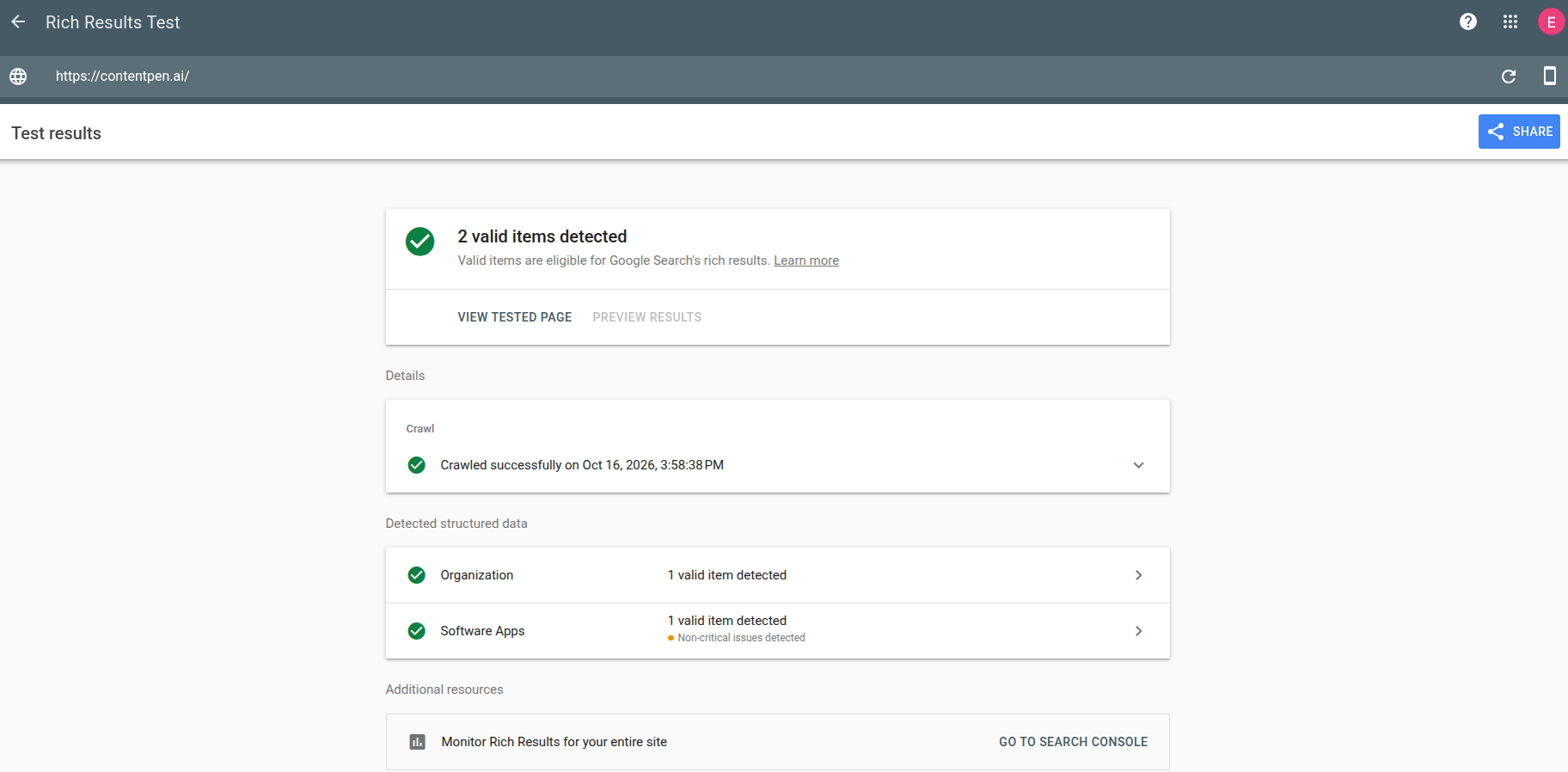
- Paste your code or URL into Google’s Rich Results Test to check rich result eligibility.
- Run the same code through the Schema Markup Validator to catch general schema.org errors.
- Fix any red errors first, then review the yellow warnings for missing recommended properties.
- Publish, then request indexing in Search Console.
- Watch the enhancement reports in Search Console over the next few weeks.
Once rich results appear, compare clicks before and after. Our guide on how to calculate CTR walks through the math.
What are the most common schema markup errors?
These are the errors that turn up most often when people adapt an example. Each one has a quick fix.
| Error | Why it happens | Fix |
|---|---|---|
| Missing required field | Example was trimmed too far | Check Google’s docs for that type’s required list |
| Trailing comma | Last property ends with a comma | Remove it; JSON doesn’t allow trailing commas |
| Curly quotes | Code was pasted from a word processor | Retype quotes as straight quotes |
| Wrong date format | Dates written as “Oct 10” | Use ISO 8601, such as 2026-10-10 |
| Markup doesn’t match the page | Price or rating not visible to users | Mark up only what visitors can see |
| Duplicate blocks | Plugin and theme both output schema | Turn one off |
How Contentpen fits into your schema workflow
A perfect snippet can’t save a weak page. Contentpen, the SEO tool online for SEO and AEO teams, helps you build the page your schema describes.
- Better source material: The SEO scoring tool checks headings, meta details, alt tags, FAQ blocks, and named entities as you write. Those become the values in your Article markup.
- Clean handoff to your CMS: Contentpen’s CMS integrations publish posts to WordPress, Shopify, Wix, Webflow, Ghost, and more, where your schema plugin or template adds the JSON-LD. Here’s how to connect WordPress to Contentpen.
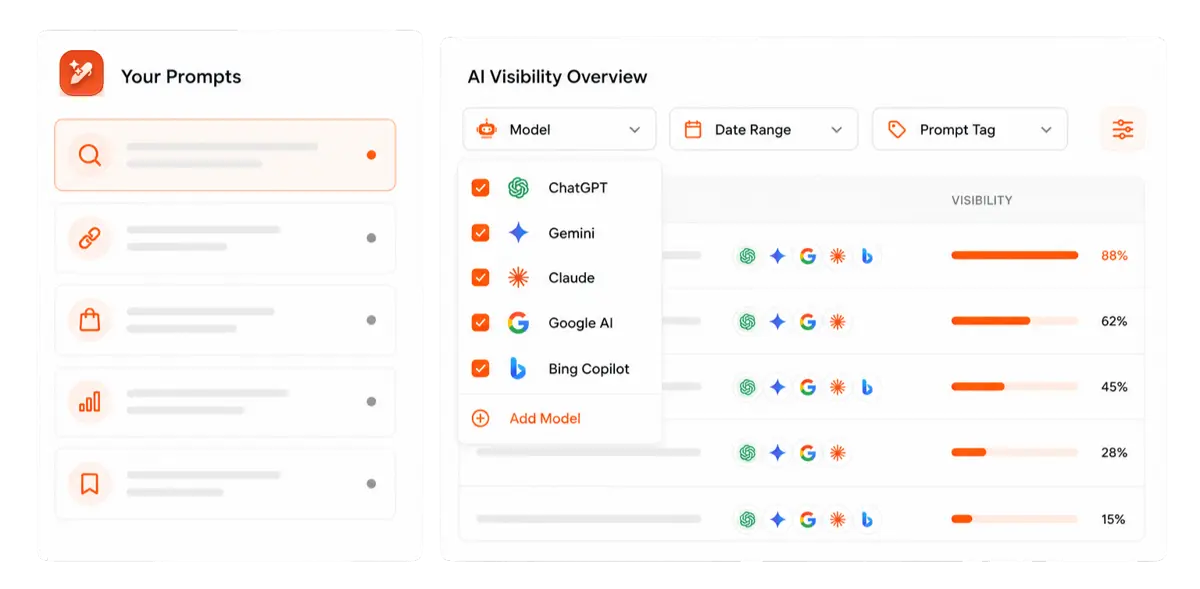
- See what AI engines say: AI visibility tracking shows whether ChatGPT, Perplexity, Gemini, and other engines mention your brand after you publish.
Find your brand in AI search

Track AI citations, share of voice, and brand sentiment
Find the top sources driving citations
Want every new post to arrive structured, scored, and ready for markup? Try Contentpen on your next article.
Start with one snippet and build from there
You don’t need all 10 examples on day one. Start with Organization and WebSite on your homepage, then BreadcrumbList across the site.
After that, add the page-level type that fits each template, such as Article, Product, or LocalBusiness. Test each one before it goes live.
Small, accurate snippets beat sprawling ones every time. Copy, adapt, validate, and repeat.
Frequently asked questions
Yes, tools like ChatGPT or Claude can draft JSON-LD quickly. Always check the output against Google’s required properties, since AI often invents fields or skips key ones.
No. Organization and WebSite usually live on the homepage, while BreadcrumbList and a page-level type change from page to page.
Generators are faster for common types and reduce syntax errors. Hand-written code gives more control for connected @graph setups or unusual types.
Not noticeably. A JSON-LD block is a few kilobytes of text and doesn’t block page rendering.
Warnings mean recommended properties are missing. The page can still be eligible, but filling them in gives Google more to work with.
You can study it with a validator, but never reuse their values. Schema must describe your own content, or it breaks Google’s guidelines.